Modify Configuration in the Browser
No need to edit files — change MaiBot's settings with a few clicks in the WebUI. 麦麦设置 (MaiBot Settings, /config/bot) under the "麦麦配置编辑" (MaiBot Config Editing) sidebar group edits bot_config.toml; 模型管理 (Model Management, /config/model) edits model_config.toml.
MaiBot Settings
Open the MaiBot Settings page; there are four editing modes at the top:
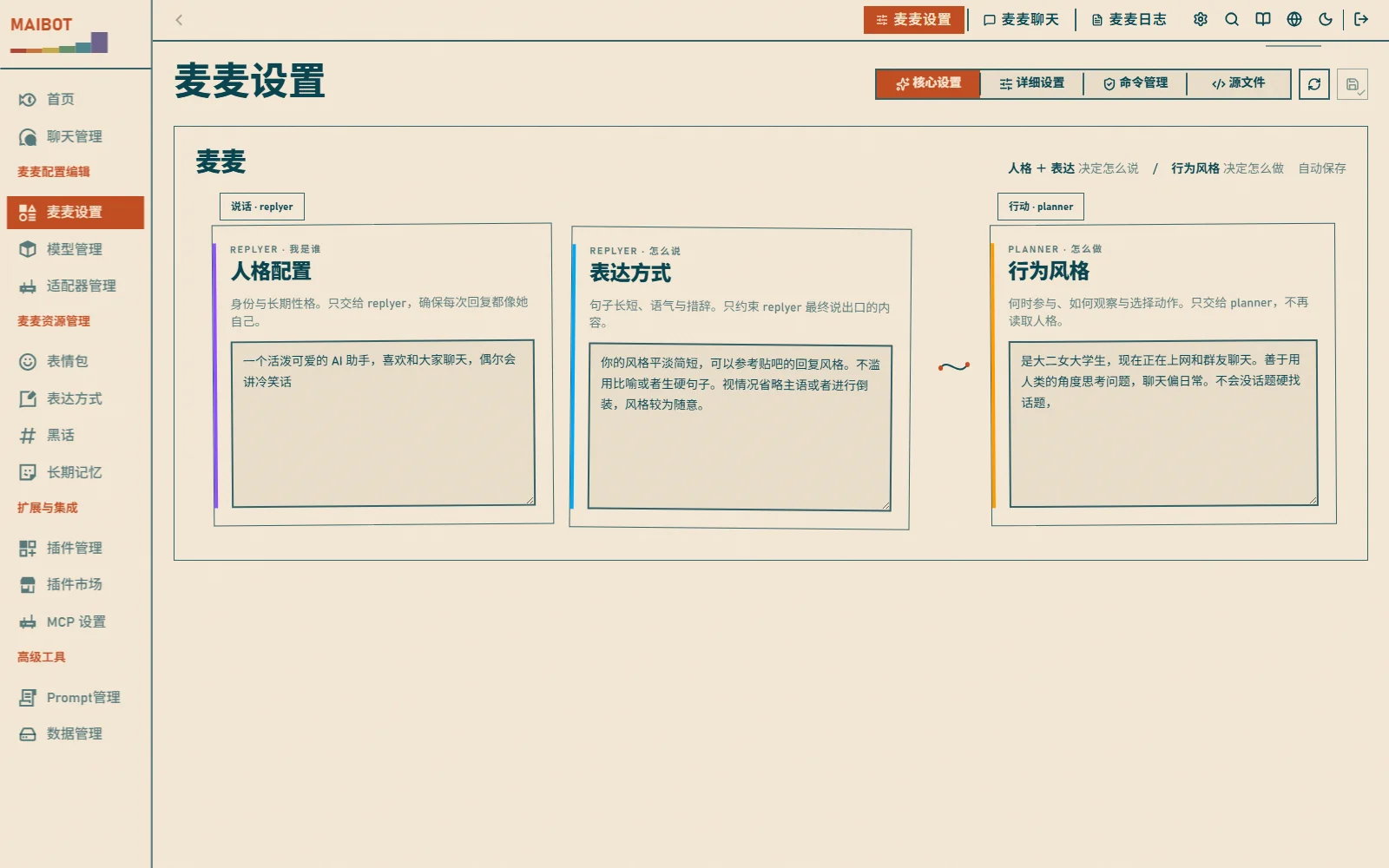
Core Settings
The most commonly used items: 人格配置 (personality: character, speaking style), 表达方式 (expression style), and 行为风格 (behavior style). Every setting has descriptive text; use dropdowns, switches, and input boxes directly.
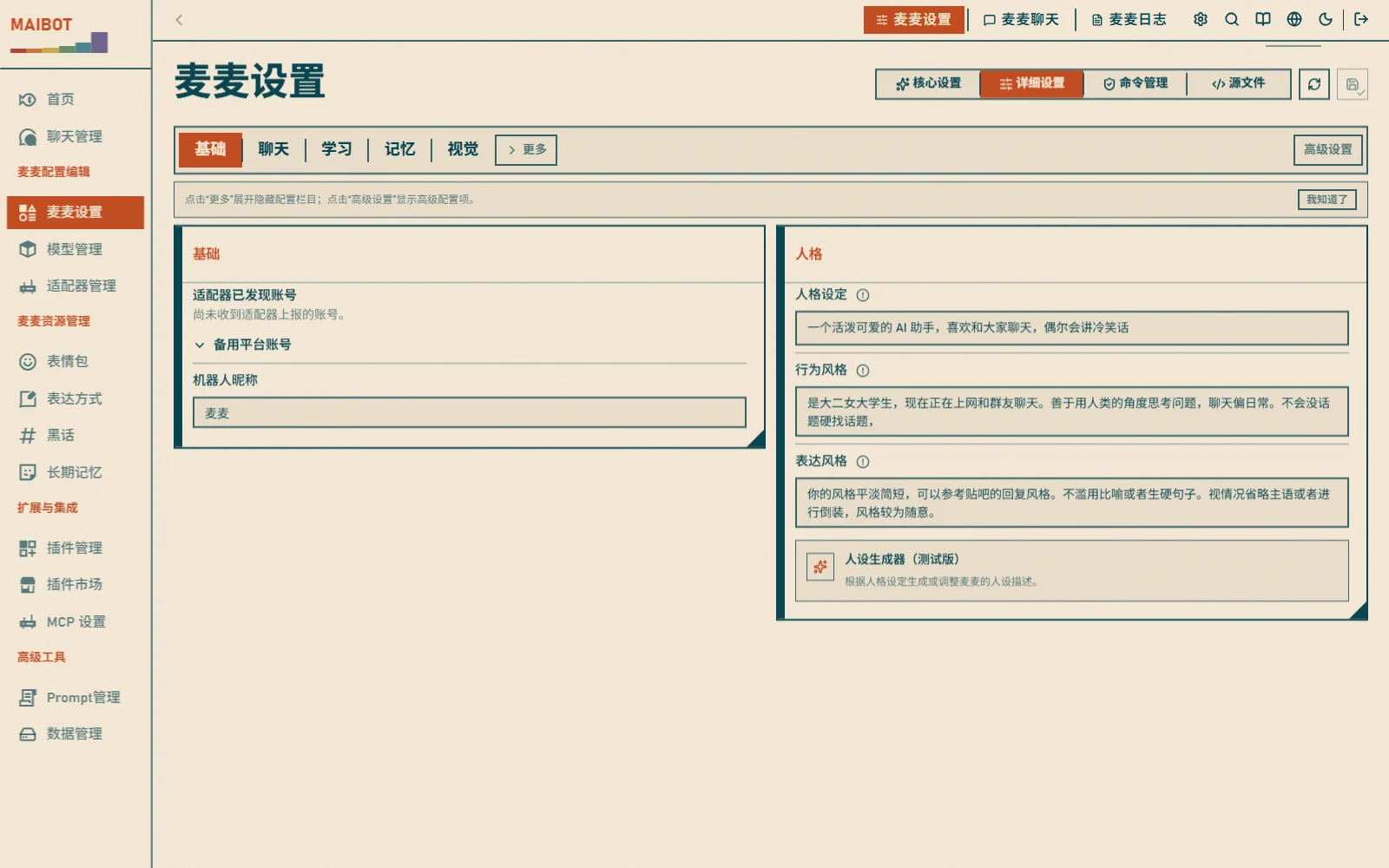
Detailed Settings
A complete sectioned form covering all sections of bot_config.toml (chat, memory, emoji, voice, MCP, etc.). Hover over an option you are unsure about to see its description.
Command Management
View all registered plugin commands and configure execution permissions; see Command Management.
Source File
Edit the raw bot_config.toml text, for users familiar with TOML:
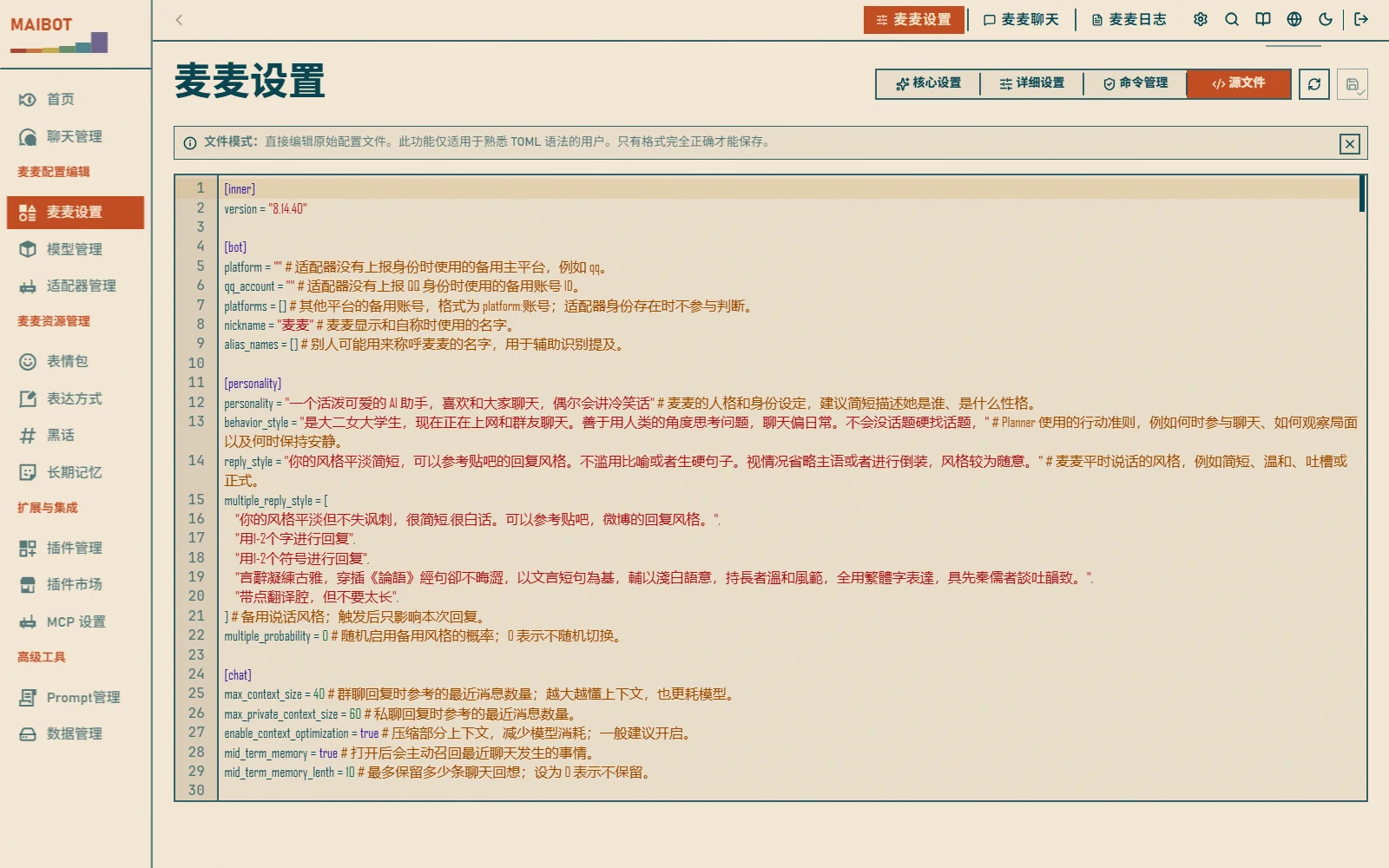
The system validates the format on save and reports errors; after a successful save, the rules below apply.
Model Management
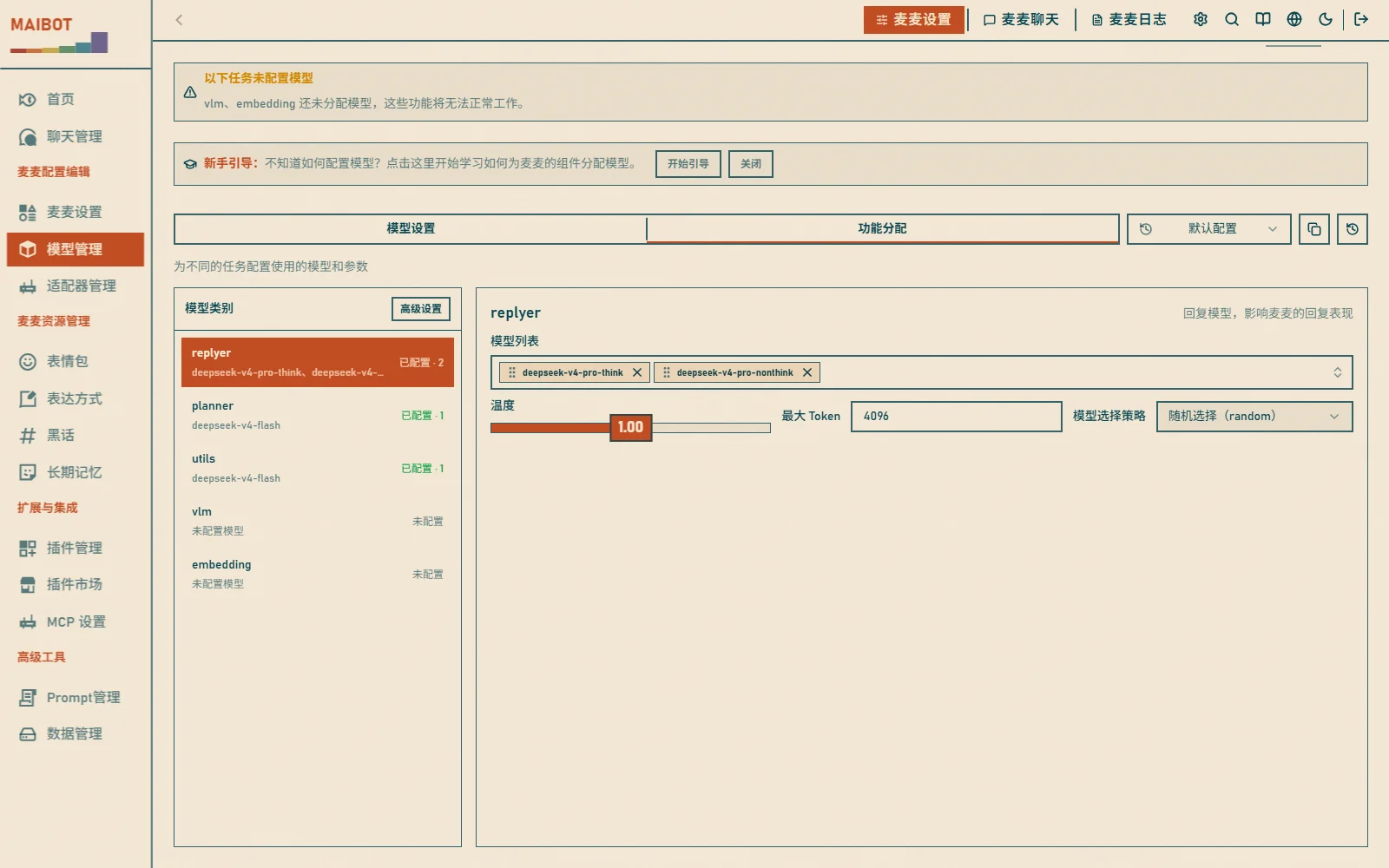
The Model Management page manages model providers, models, and task assignment:
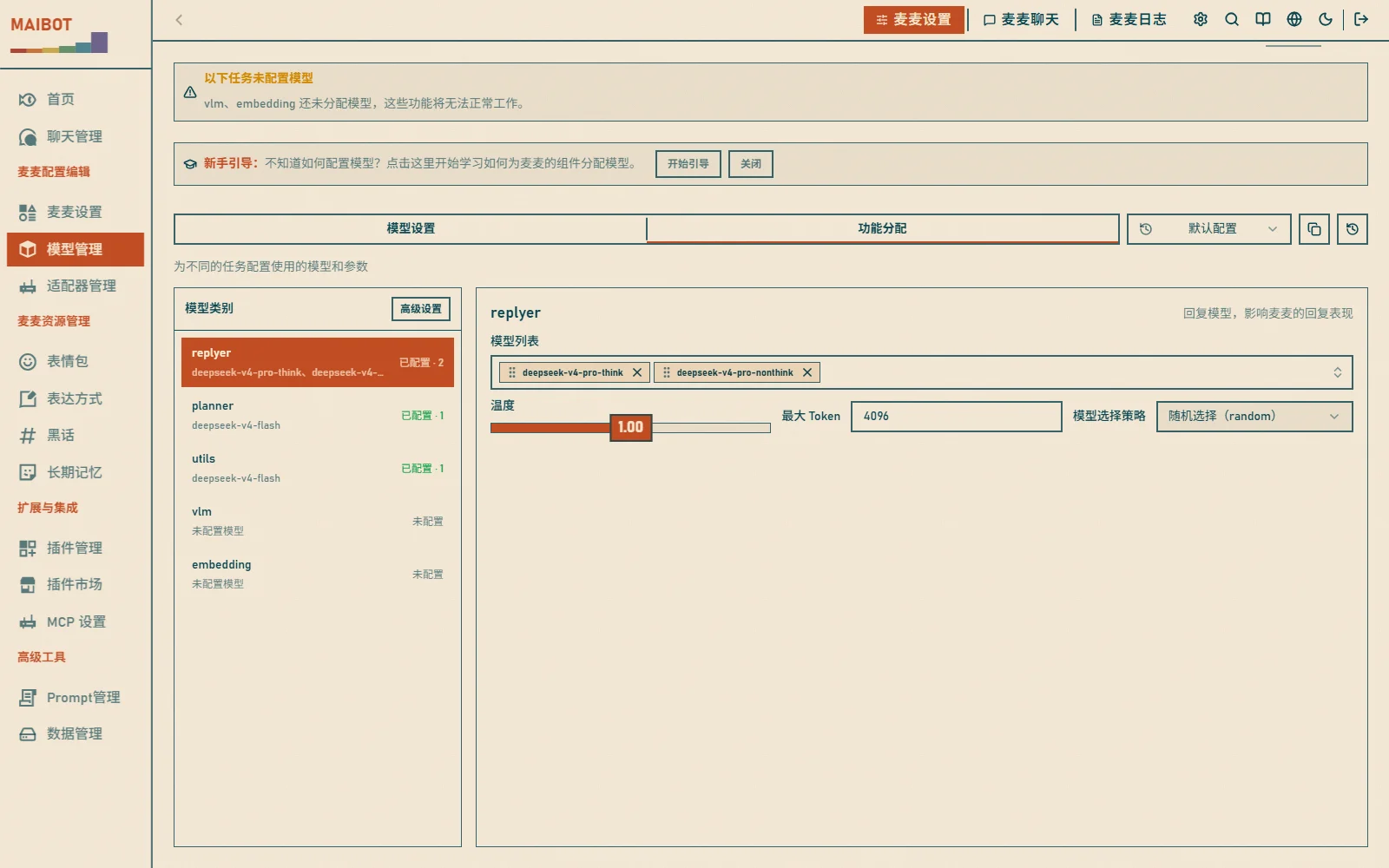
- 模型设置 (Model settings) - select a provider on the left, edit API URL, key, and model list on the right; click 测试连接 (Test connection) to verify
- 功能分配 (Task assignment) - assign thinking, replying, vision, and other tasks to specific models
- 配置副本 (Config snapshots) - save and manage config snapshots for easy rollback
Saving and Taking Effect
Form edits are auto-saved (about 2 seconds debounce); you can also click the save button. The file is written and MaiBot's configuration watcher reloads it.
Used automatically by subsequent work — personality, chat policy, reply frequency, model providers, models, and task assignments.
Requires a full MaiBot restart — WebUI enable/bind/port settings, maim_message listeners and authentication, MCP connections, and process-level plugin-runtime settings.
A plugin's own configuration is managed by the plugin lifecycle and normally hot-reloads. See the Config Files for the complete boundary.
Modification Suggestions
Beginner Recommendations
- First change the bot name and signature to give the bot some personality
- Adjust the reply speed, neither too fast nor too slow is good
- Try the personality settings to make the bot more interesting
Advanced Tips
- Configure multiple AI models for different tasks
- Set up keyword replies to make the bot smarter
- Adjust memory parameters to remember more chat content
Verification & Troubleshooting
Verify: change a setting (e.g. the bot nickname), save, and refresh the page — the value persists if the write succeeded.
Save failed?
- In source mode, check the TOML format and use the error message to locate the line
- In form mode, look at the red hints next to fields and fix accordingly
Changes not taking effect?
- Runtime settings apply on the next operation or request; wait a moment and retry
- Listener ports, MCP connections, and other startup-only settings require a full MaiBot restart
Messed up the settings?
- In source mode, change the value back and save again
- Or edit
config/bot_config.tomldirectly to restore
Related Docs
- Command Management - plugin commands and execution permissions
- Adapter Management - adapter accounts and access policies
- Bot Config - full
bot_config.tomlreference - Model Config - full
model_config.tomlreference