Login & Settings
MaiBot ships with a browser admin panel (WebUI). Once started, visit http://localhost:8001 to change configuration, manage memory, and view statistics. This page covers how to log in, complete first-time setup, and recover a lost password.
Get the Login Password
When starting MaiBot for the first time, the console prints a temporary Token:
🔑 WebUI 登录 Token: e37fd618051f802816dc3bf32067583294b2648aff233a2d4caee0f67ebfdfcb
💡 请使用此 Token 登录 WebUI
This Token is only for the first login of the current startup. After signing in, the setup wizard requires you to set a persistent Token. A temporary Token is regenerated on the next startup.
Log In
- Open
http://localhost:8001in your browser to reach the login page - Enter the Token shown in the console and click 登录 (Log in)
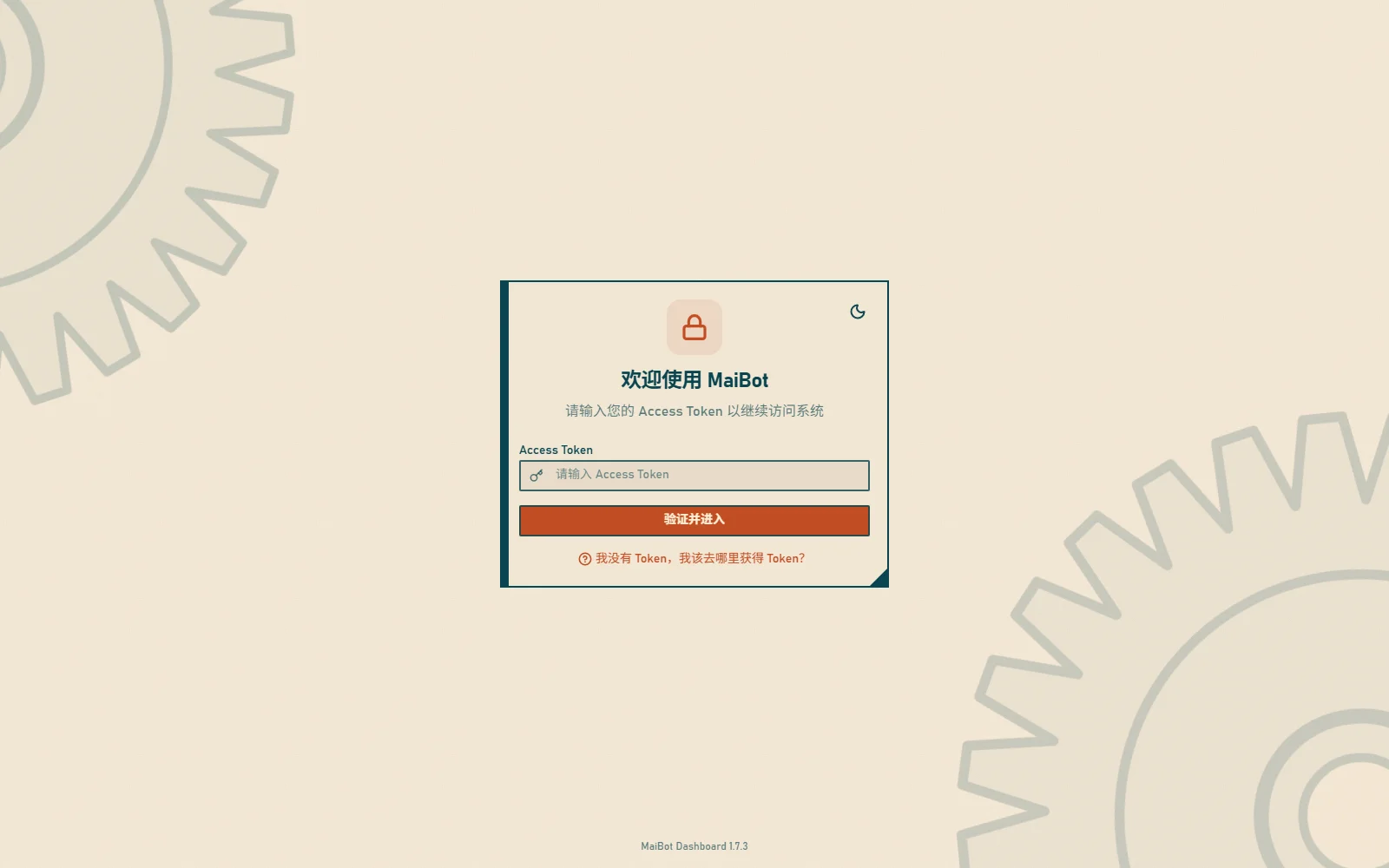
- On first login, the setup wizard opens; the first step is setting a persistent Token
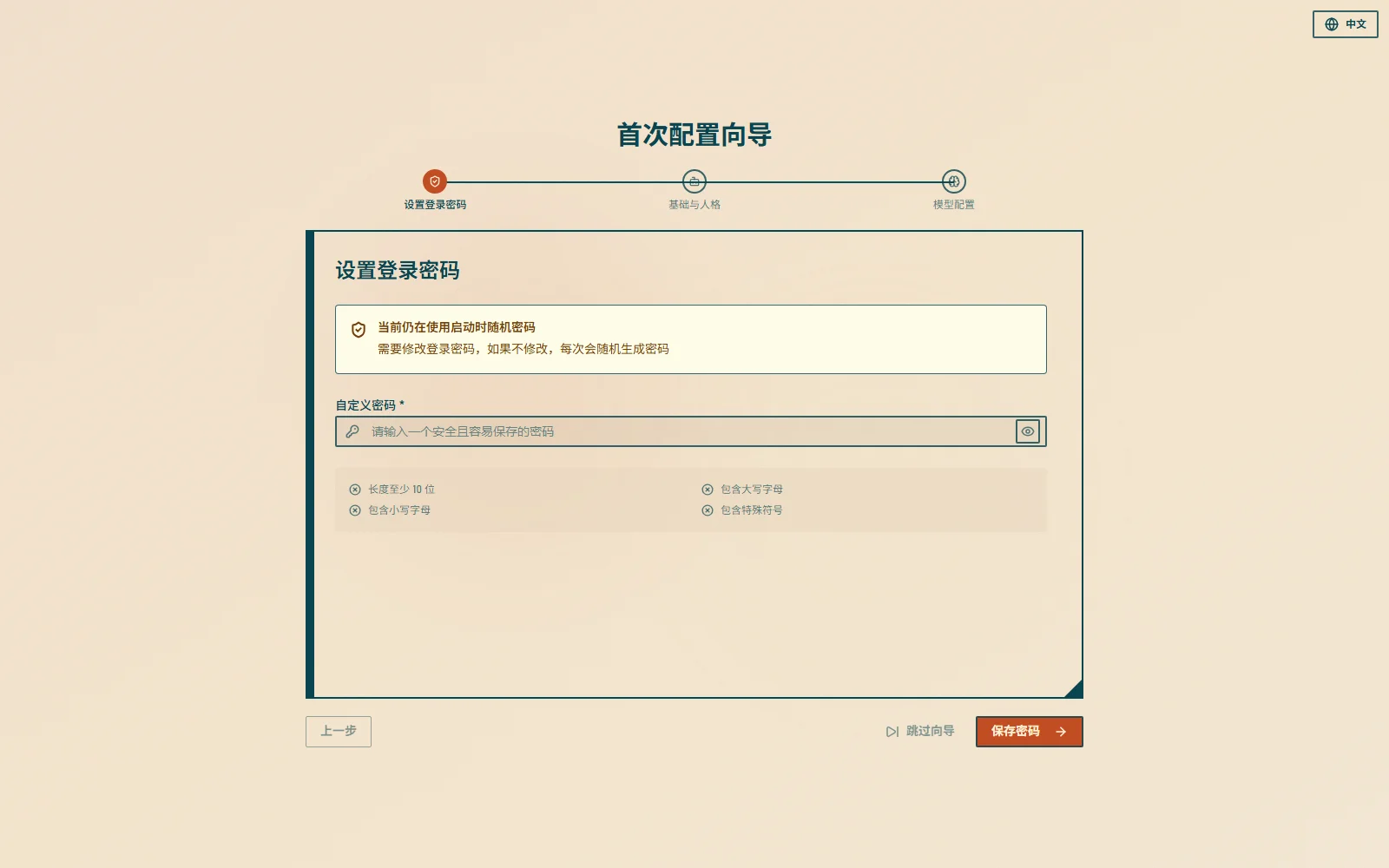
The persistent Token must satisfy all of: at least 10 characters, at least one uppercase letter, at least one lowercase letter, and at least one special character (e.g. MaiBot-Docs-2026!).
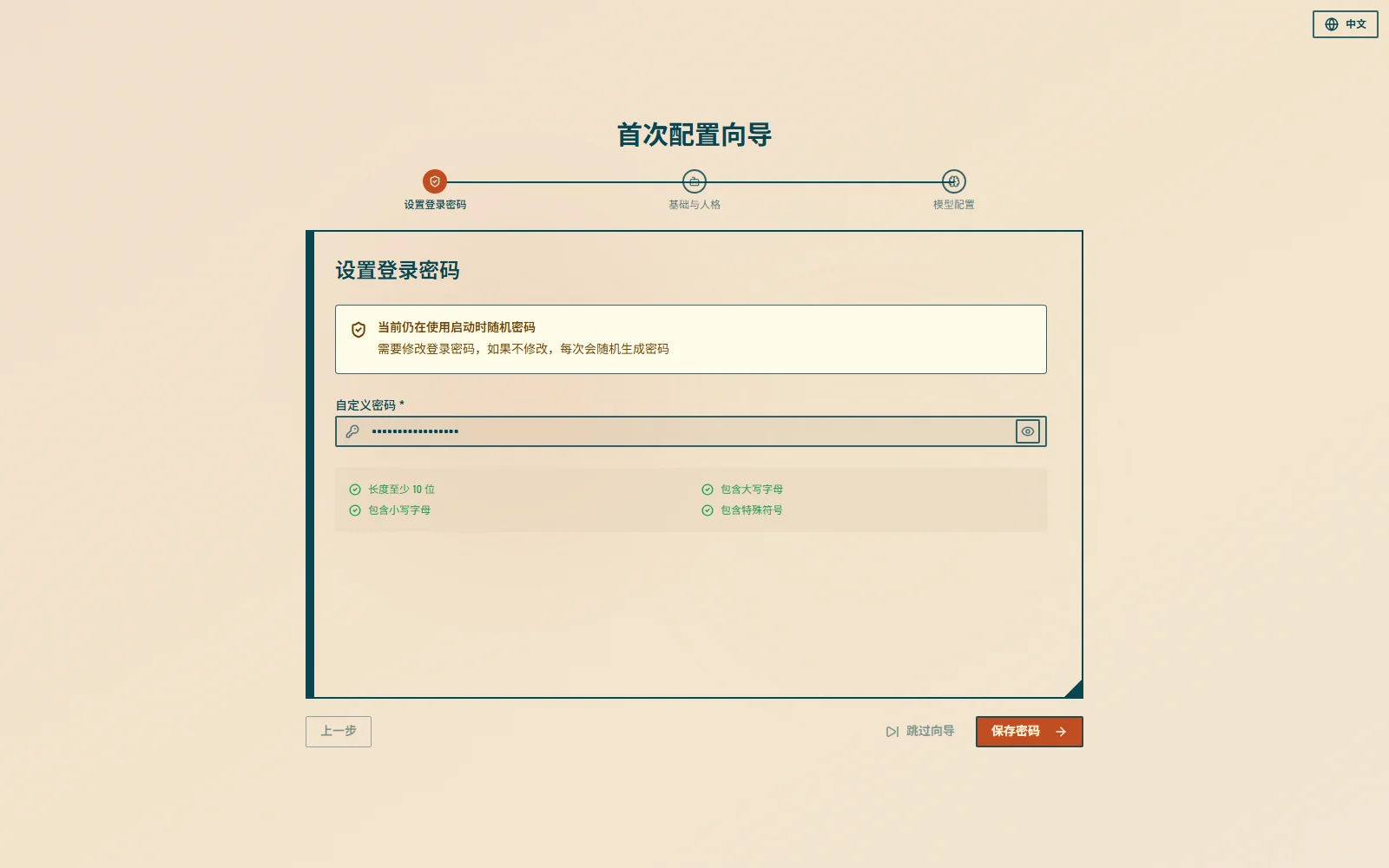
- After saving, the old Token is invalidated immediately; log in again with the new Token and continue the wizard
First-Time Setup Wizard
The wizard has three steps, and any step can be skipped with 跳过向导 (Skip wizard); you can re-enter it later from WebUI Settings:
Set Login Password
Replace the temporary Token with your own persistent Token.
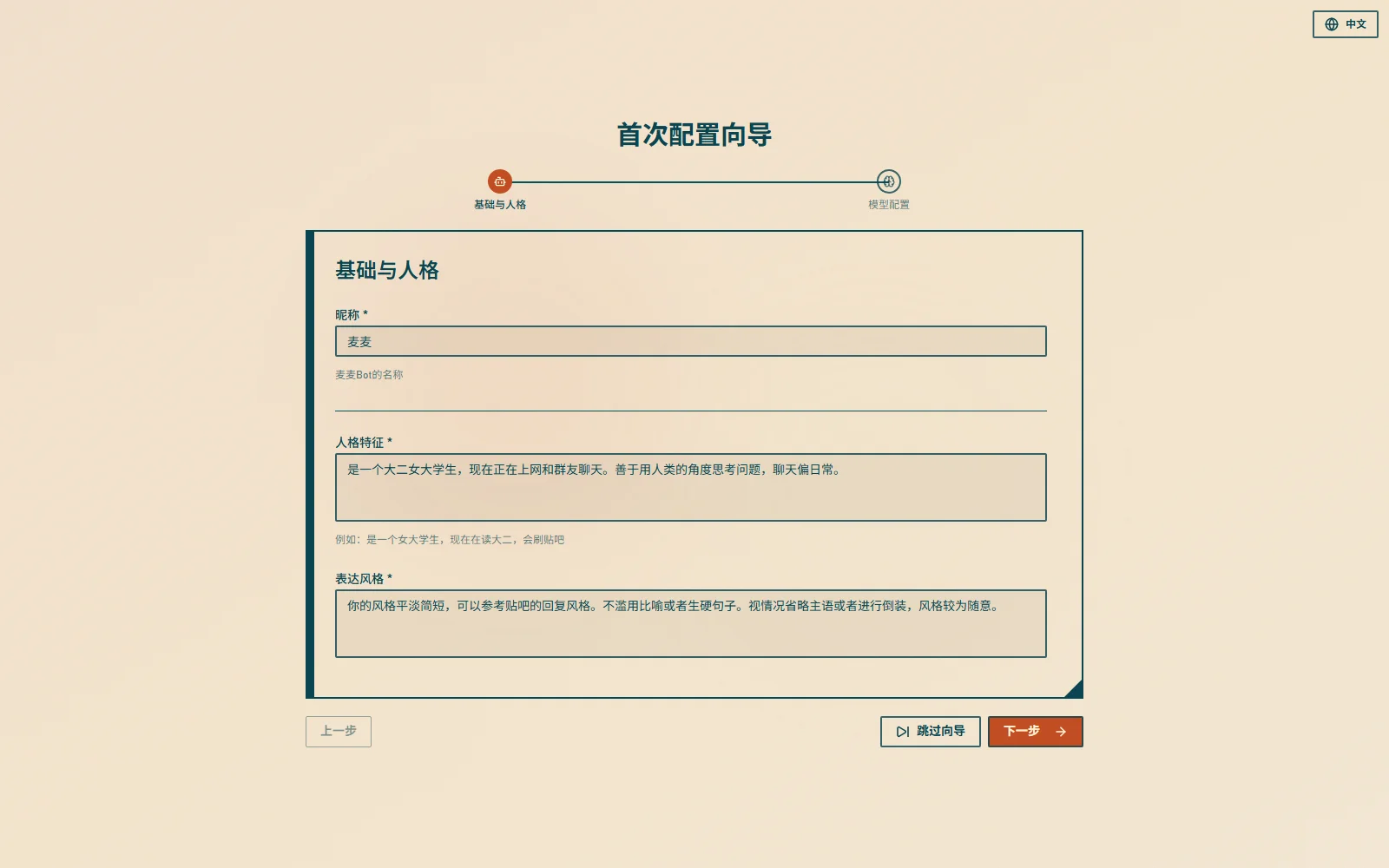
Bot Basics & Personality
Set the bot nickname, personality description, and reply style.
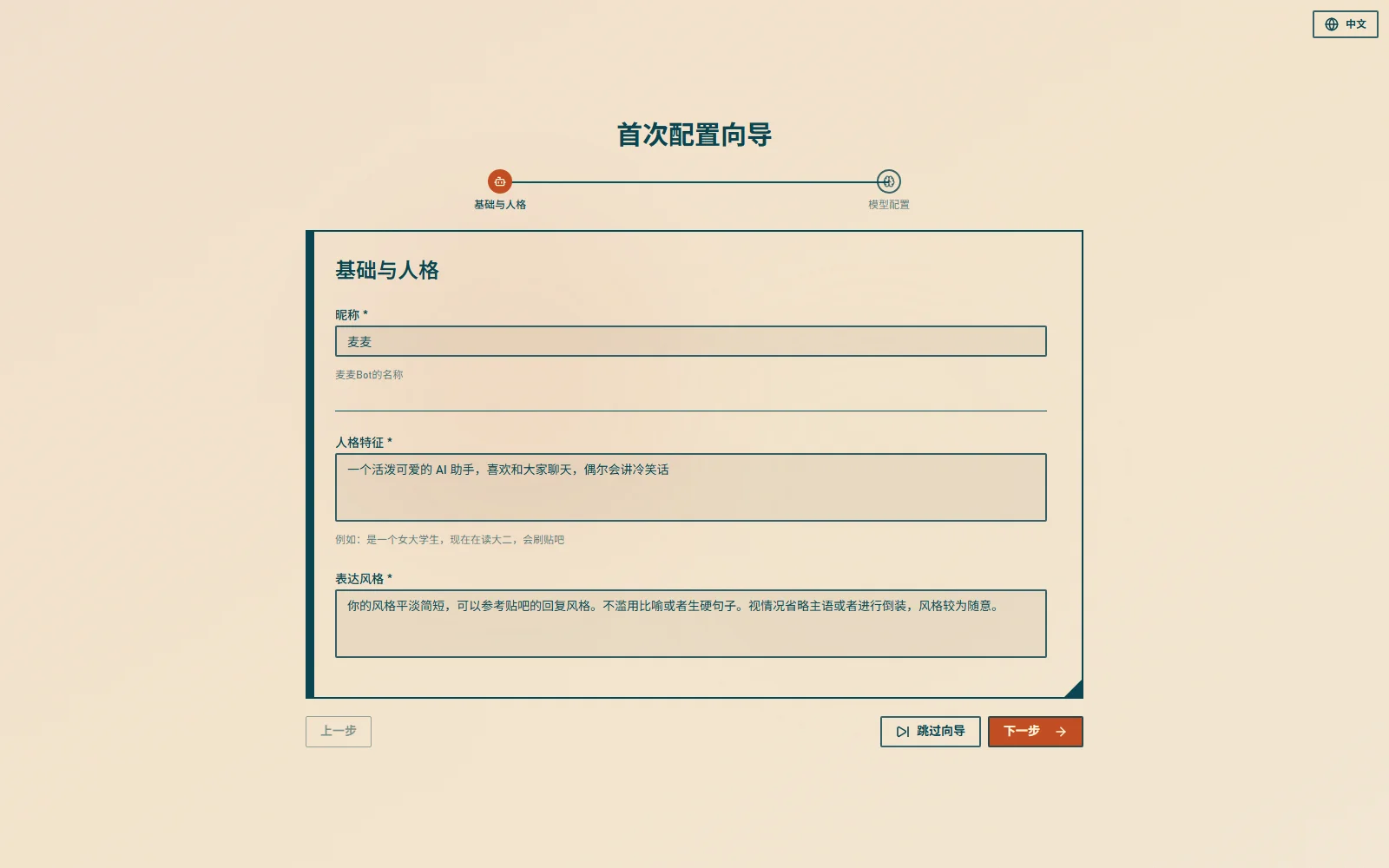
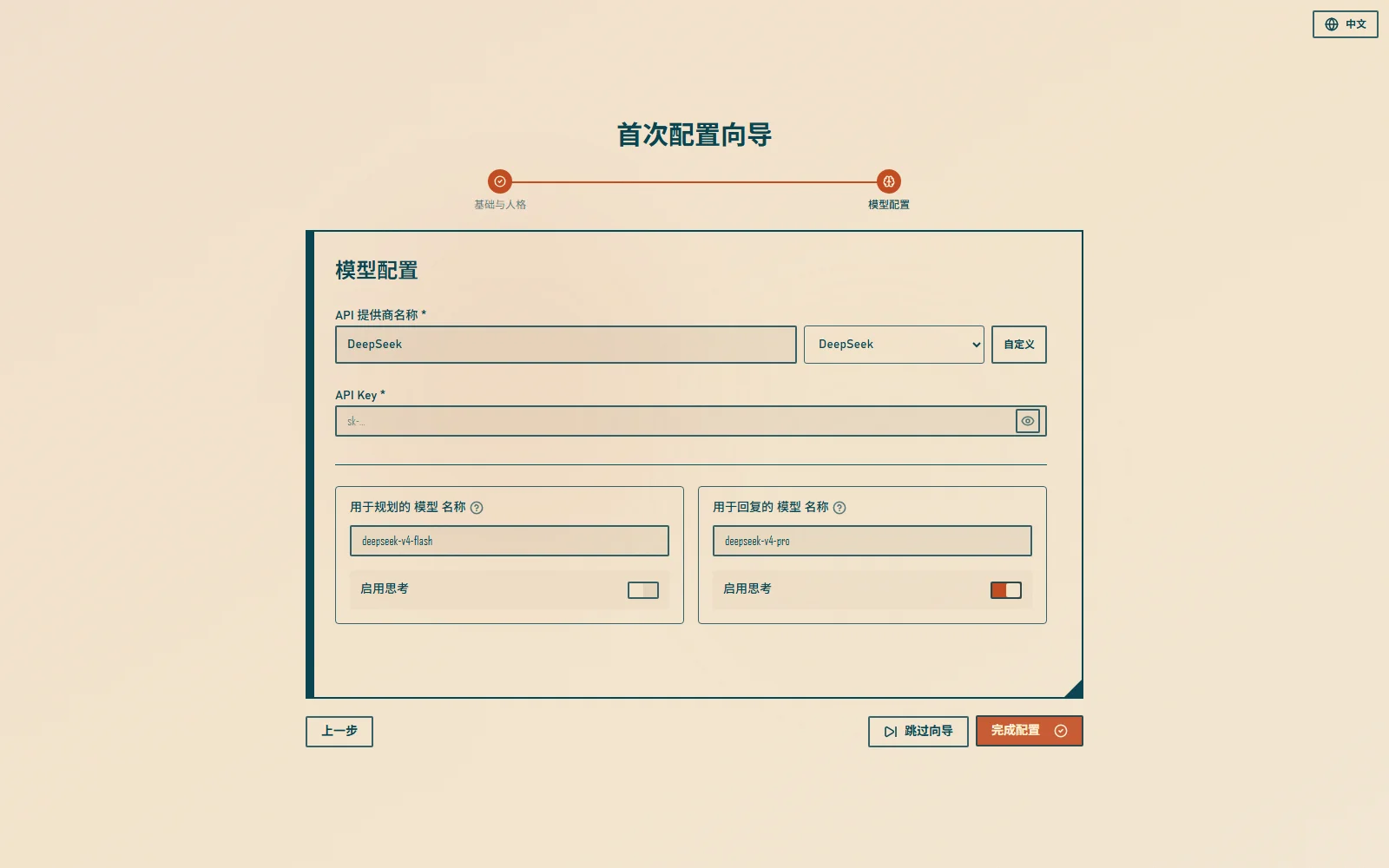
API & Models
Configure the model provider (API URL, key) and base models. If you don't have a key yet, skip and fill it in later under Model Management.
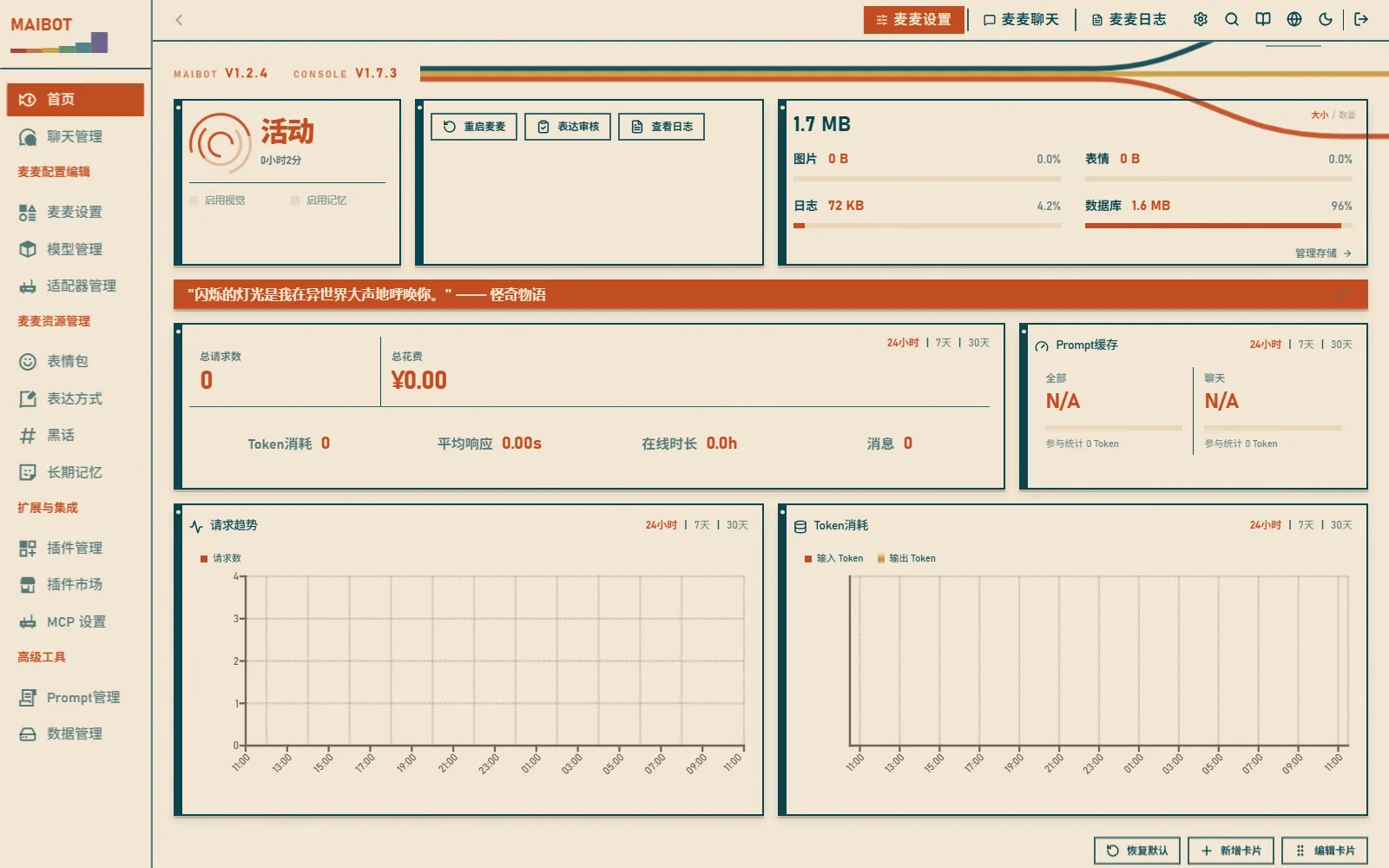
After completion you land on the dashboard home page:
What Can You Do?
- ⚙️ Change Configuration - Edit
bot_config.tomlthrough forms, no file editing needed - 🧠 Manage Memory - View, import, correct, and delete long-term memory
- 🔌 Install Plugins - Install and manage plugins and adapters
- 📊 View Statistics - Messages, tokens, cost, and uptime
Basic Settings
Change WebUI settings in bot_config.toml:
[webui]
enabled = true                # Whether to enable WebUI
host = ["127.0.0.1", "::1"]  # Bind address list
port = 8001                   # Port number
mode = "production"           # Running mode: development or production
webui_style = 1               # UI style
anti_crawler_mode = "basic"   # Anti-crawler mode: false / strict / loose / basic
allowed_ips = "127.0.0.1" # IP whitelist (comma-separated)- Change
hostto["0.0.0.0", "::"]to listen on all interfaces; also configure firewall rules, access restrictions, and HTTPS portcan be changed to another number to avoid conflicts
WebUI Settings
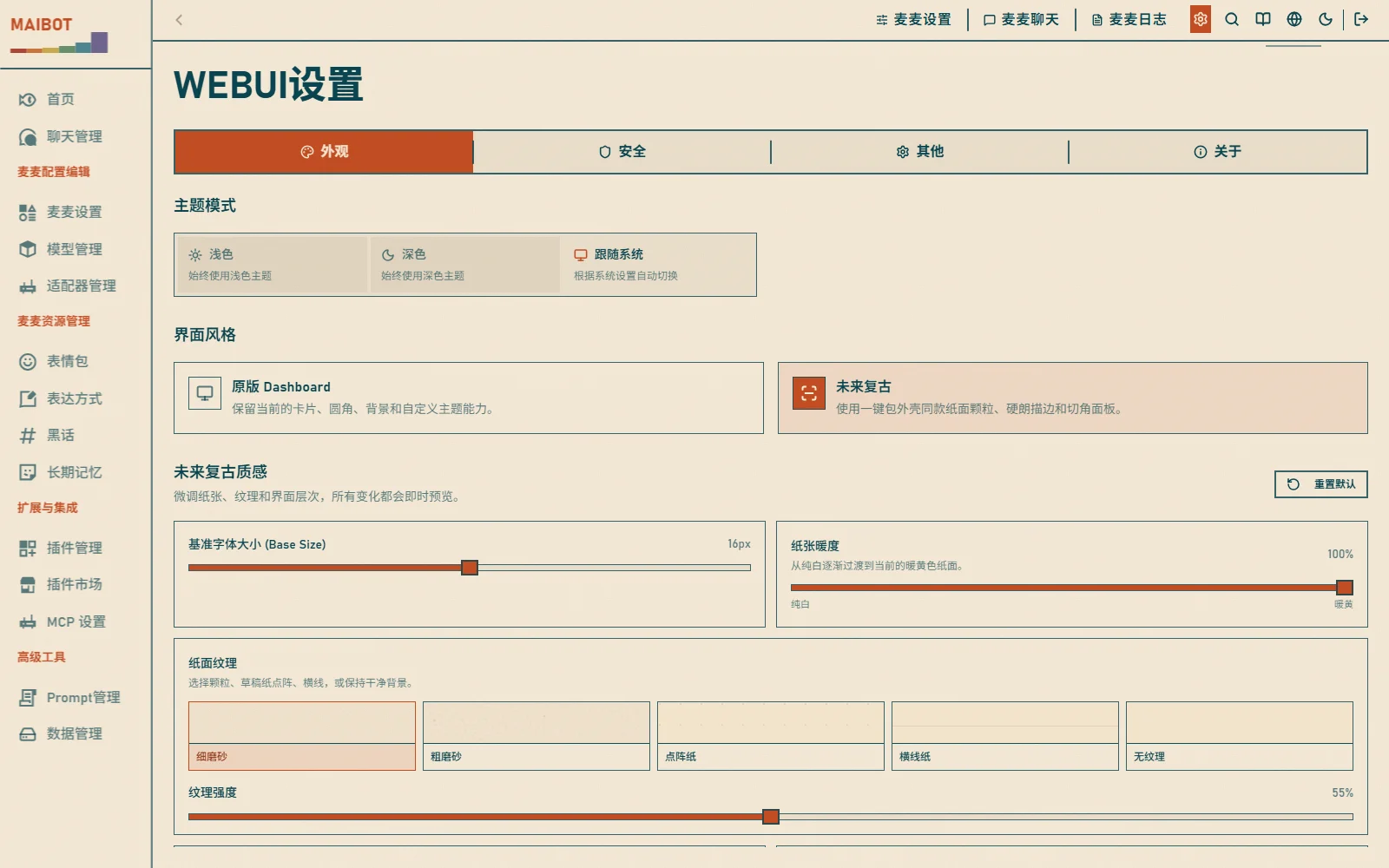
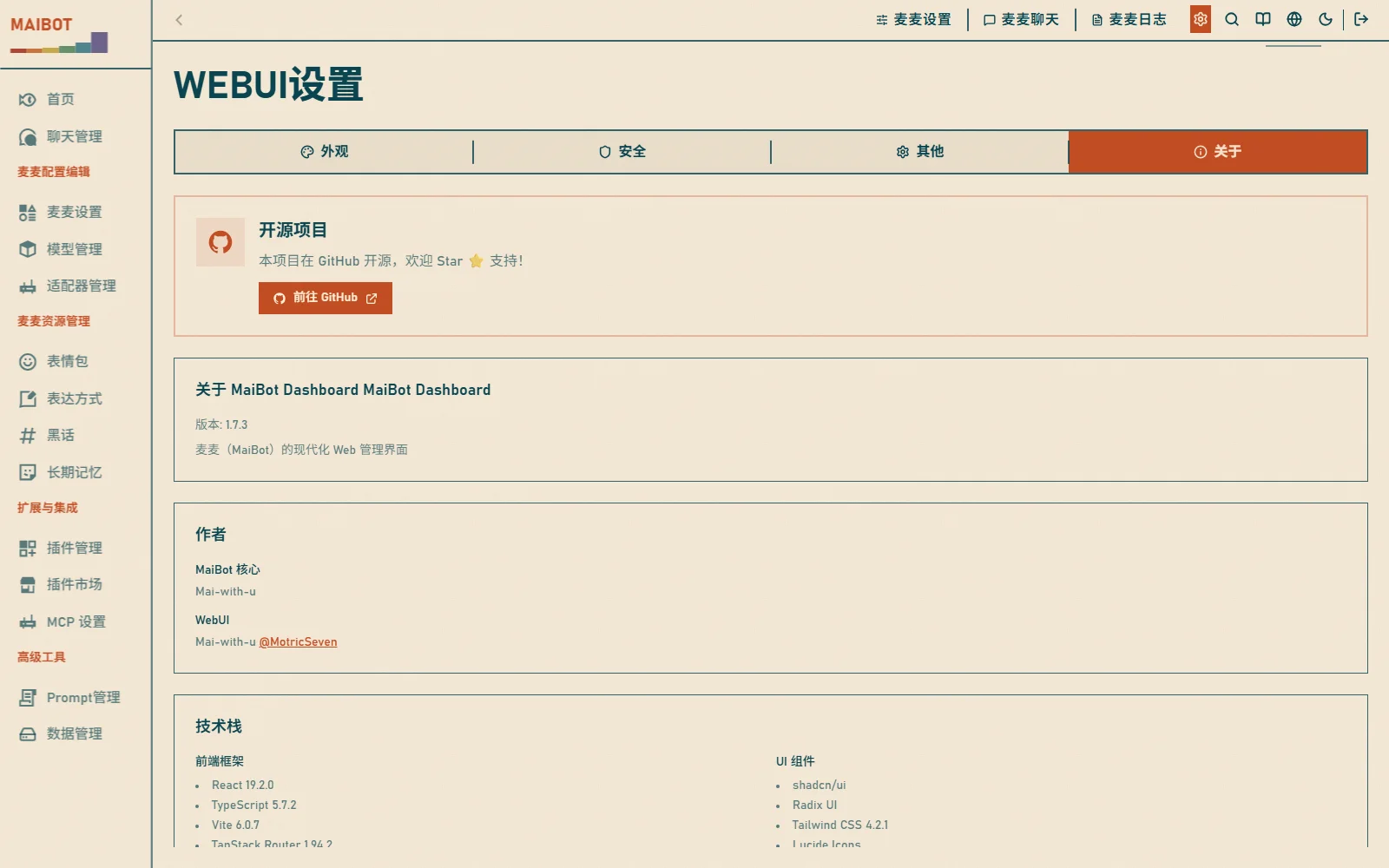
Click the gear icon in the top-right corner to open WebUI Settings (/settings) and manage interface preferences:
- 外观 (Appearance) - theme mode (light/dark/system), accent color, fonts, border radius, custom CSS
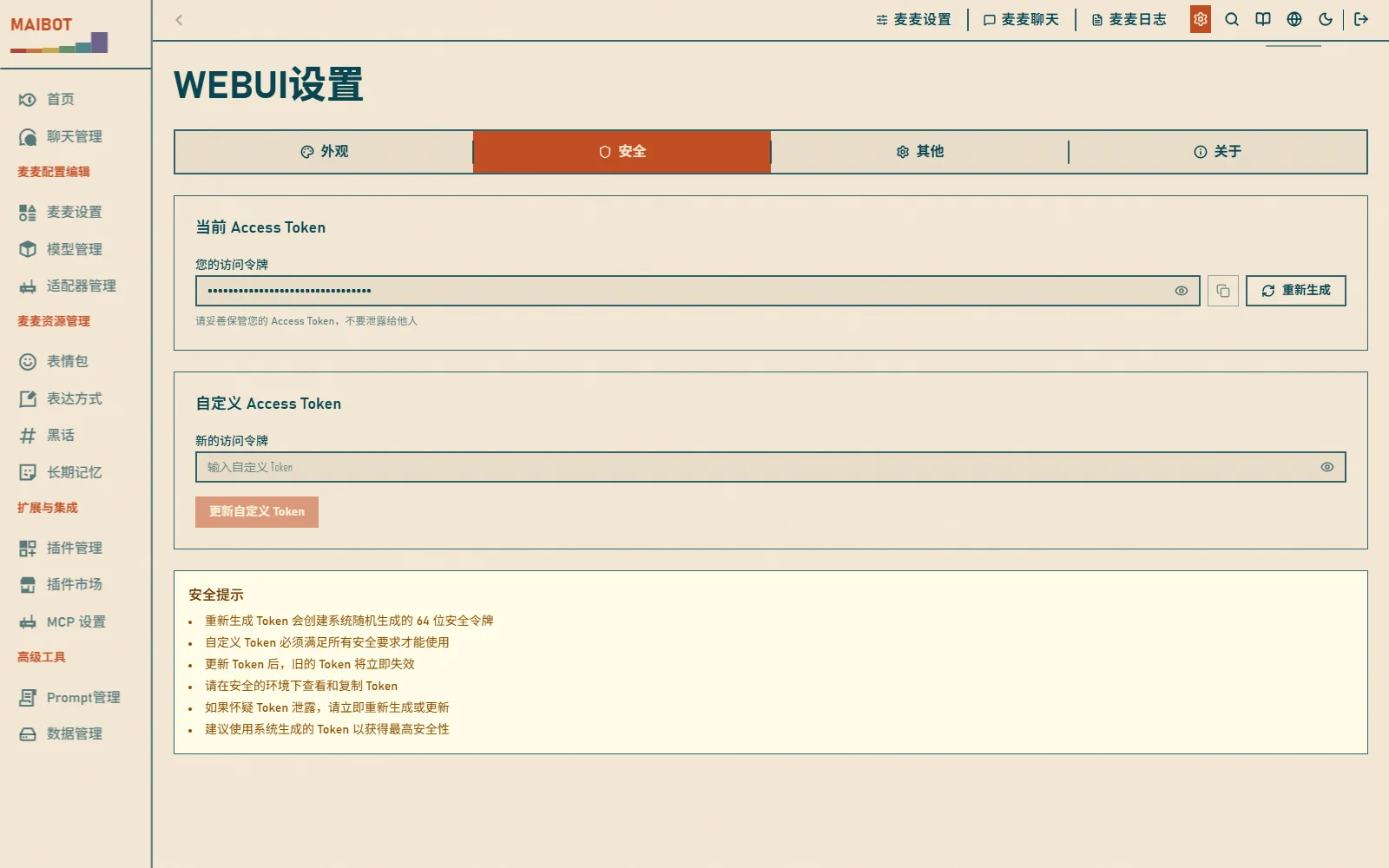
- 安全 (Security) - change or regenerate the login Token
- 其他 (Other) - data management: clear logs and cache, import/export settings, reset
- 关于 (About) - version info, tech stack, and open-source license
Live Chat Stream Quick Management (v1.2.5+)
In the left session sidebar of the WebUI "Mai Chat" workspace:
- Direct Settings Entry: For connected live chat streams (e.g., group chats or private message streams from NapCat or SnowLuma), a dedicated ⚙️ Settings gear icon is provided next to each session item.
- Quick Management Features: Clicking the gear icon opens a management drawer for that specific stream, allowing administrators to view real-time stream status, quickly adjust reply frequency and interjection thresholds, and inspect its associated audit and reasoning timelines.
Forgot Your Password?
If you can still sign in, change or regenerate the Token under WebUI Settings → Security:
If you can no longer sign in:
- Shut down MaiBot
- Delete the
data/webui.jsonfile - Restart MaiBot, log in with the new temporary Token shown in the console, and set a new persistent Token
Verification & Troubleshooting
Verify: after logging in you should see the home page statistic cards and the sidebar menu, which means the WebUI is working.
Page won't open?
- Confirm MaiBot is running and the console printed "WebUI 服务器已启动" (WebUI server started)
- Confirm
[webui].enabled = trueand the port is not occupied
Token error on login?
- The temporary Token changes on every startup; use the value printed by the current startup
- Don't copy extra spaces or line breaks
Locked out after setting the persistent Token?
- The old Token is invalidated as soon as the persistent Token is saved; log in with the new Token
- As a last resort, delete
data/webui.jsonto reset
More Features
- Configuration Management - Change configurations in the browser
- Memory Management - View and manage memories
- Plugin Management - Install and manage plugins
- Chat Logs - View chat statistics