Command Management
Since 1.2.0, MaiBot provides unified management for plugin commands: view all registered commands in the WebUI and configure execution permissions (authorization) for each command. The entry point is the 命令管理 (Command Management) tab at the top of the 麦麦设置 (MaiBot Settings) page (sidebar "配置管理" / Configuration group → MaiBot Settings), at /config/bot?mode=commands. MaiBot Settings has two tabs at the top (Detailed Settings / Command Management) and an ellipsis menu, and Command Management is the second tab.
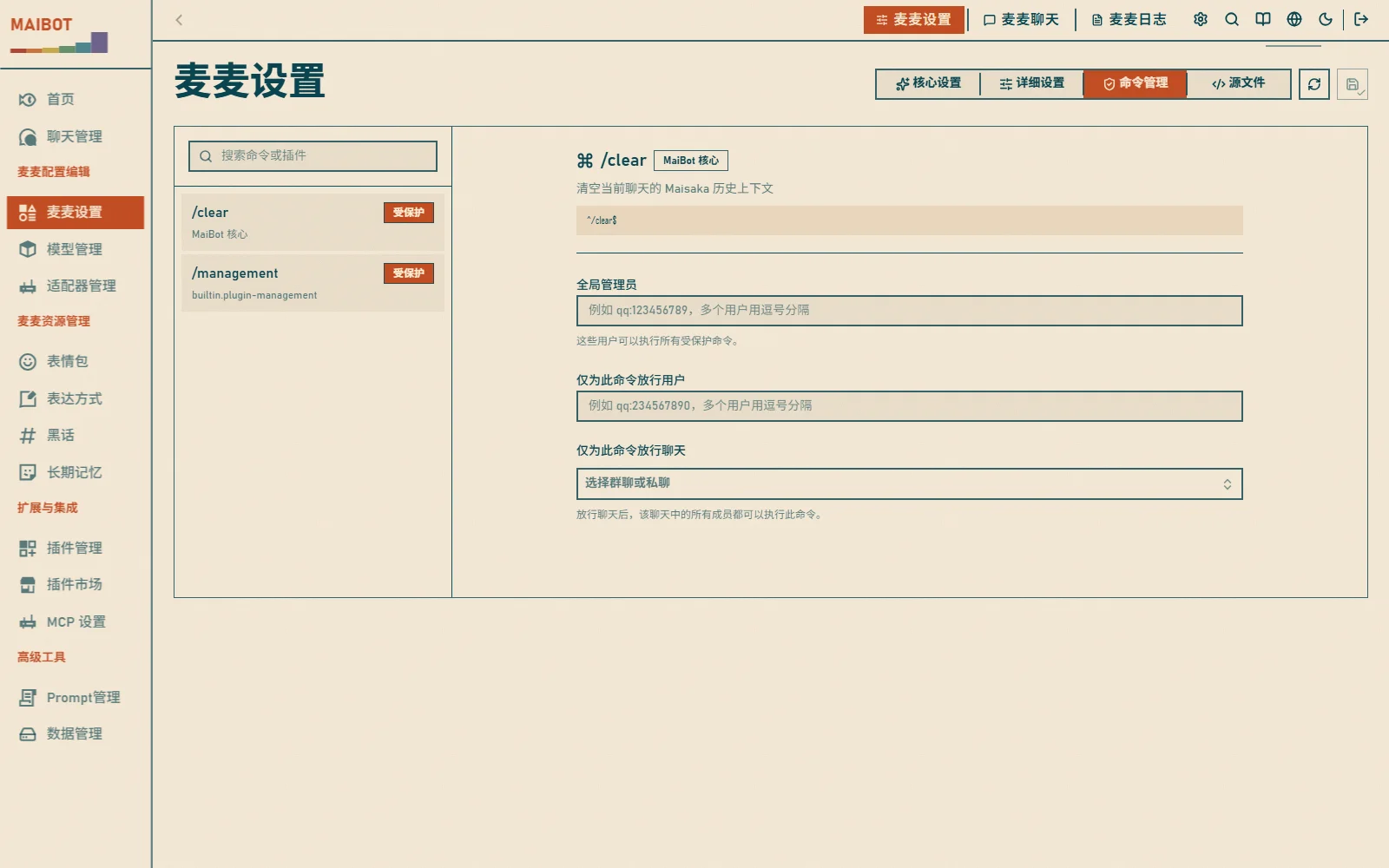
View All Commands
Command management lists all currently registered plugin commands at runtime:
- Command name and trigger pattern
- Owning plugin and description
- Authorization flag — commands marked as "operator" level require extra authorization to execute
- Disabled flag — disabled commands show a "已停用" (Disabled) badge next to the existing "受保护 / 公开" (Protected / Public) badge
Besides the commands registered by plugins, the list also contains MaiBot's built-in core.clear command (/clear, clears the current chat's history context), which is managed by the same switches on this page.
You can search commands by name, description, or plugin name to quickly locate one.
Command Authorization
A command can require operator permission (operator level). Once a command is marked as operator level, only the following users / chats can execute it:
- Operator list — users configured in
[plugin].permission(platform:idformat, e.g.qq:123456789) - Command allow rules — per-command
allow_users(allowed users) andallow_chats(allowed real chat flows)
In the command management page:
- Select a command
- In 放行用户 (Allowed Users), add users allowed to execute it (
platform:idformat) - In 放行聊天 (Allowed Chats), select the chat flows allowed to execute it (chosen from existing chat flows)
- After saving, the configuration is written to the
[plugin]section ofbot_config.toml
Permission evaluation order
A command that matches no allow rule cannot be executed by ordinary users. The logic is handled uniformly by has_command_permission(): first it checks whether the user is an operator, then whether a command-level allow rule matches.
Disabling Commands
After selecting a command, the card at the very top of its details is the 启用此命令 (Enable this command) switch. Turning it off means command text in chat no longer triggers this command and the message continues to be processed as an ordinary message — handy for temporarily muting a command without uninstalling its plugin.
- It writes
[plugin].disabled_commandsinbot_config.toml(an array of command IDs inplugin_id.command_nameformat) - On save the list is written in command-list order, regardless of the order you clicked
- The command shows a "已停用" (Disabled) badge in the left list
- Flipping the switch back on restores it and the badge disappears
Hiding Permission Denied Notices
Below the "仅为此命令放行用户" (Allow users for this command only) card in the command details is the 不显示无权限提示 (Hide permission denied notice) switch. When on, an ordinary user who runs a protected command without permission gets no reply from MaiBot — the attempt is silently blocked and only logged, so the group chat stays clean while you can still trace attempts in the logs.
- It writes
[plugin].silent_permission_denied(a boolean that applies to all protected commands) - This key has existed in
bot_config.tomlsince 1.3.1; 1.3.2 is when it was exposed as a switch in the command management page - With the switch off (the default), an unauthorized attempt gets the usual notice message
Configuration File
Command permissions live in the [plugin] section of bot_config.toml:
[plugin]
permission = ["qq:123456789"]  # operator list
silent_permission_denied = true  # silently block unauthorized attempts, no notice message
disabled_commands = ["example-plugin.example-command"]  # disabled command IDs

[plugin.command_permissions.example-plugin.example-command]
allow_users = ["qq:987654321"]  # extra allowed users
allow_chats = ["chat-xxxx"]     # extra allowed chat flow IDs
Verification & Troubleshooting
Verify: search a command name on the command management page — it should be found with the correct authorization flag, which means the command is registered.
Command list is empty?
- Confirm the corresponding plugin is installed and enabled
- Plugins that don't declare a Command component won't appear in the list
The command exists but nothing happens in chat?
- Check the list for the "已停用" (Disabled) badge; if it is there, turn the "启用此命令" (Enable this command) switch back on
- The built-in
/clearcommand has the IDcore.clearand is governed by the same switch
Saving allow rules failed?
- User IDs must be in
platform:idformat - Allowed chats can only be selected from existing chat flows
Related Docs
- Plugin Command Component — how plugins declare commands and the operator level
- Bot Config — full
[plugin]section reference