Install Plugins
Plugins are like "Apps" you install for MaiBot, giving it more capabilities—games, drawing, music, weather queries, and adapters that connect platforms like QQ, email, and voice calls—almost everything is a plugin.
Install plugins from the built-in Plugin Market or a Git repository. To develop plugins, see Plugin Integration and the Plugin Development Guide.
What is a Plugin
- 🎮 Feature plugins — games, drawing, music, weather, etc.
- 🔌 Platform adapters — connect messaging platforms to MaiBot; they are plugins too
- 🛠️ Developer components — Tool, Command, Hook, event handlers, etc.
Plugin Market (Recommended)
MaiBot has a built-in Plugin Market where you can browse, install, and update plugins from the WebUI—no command line needed.
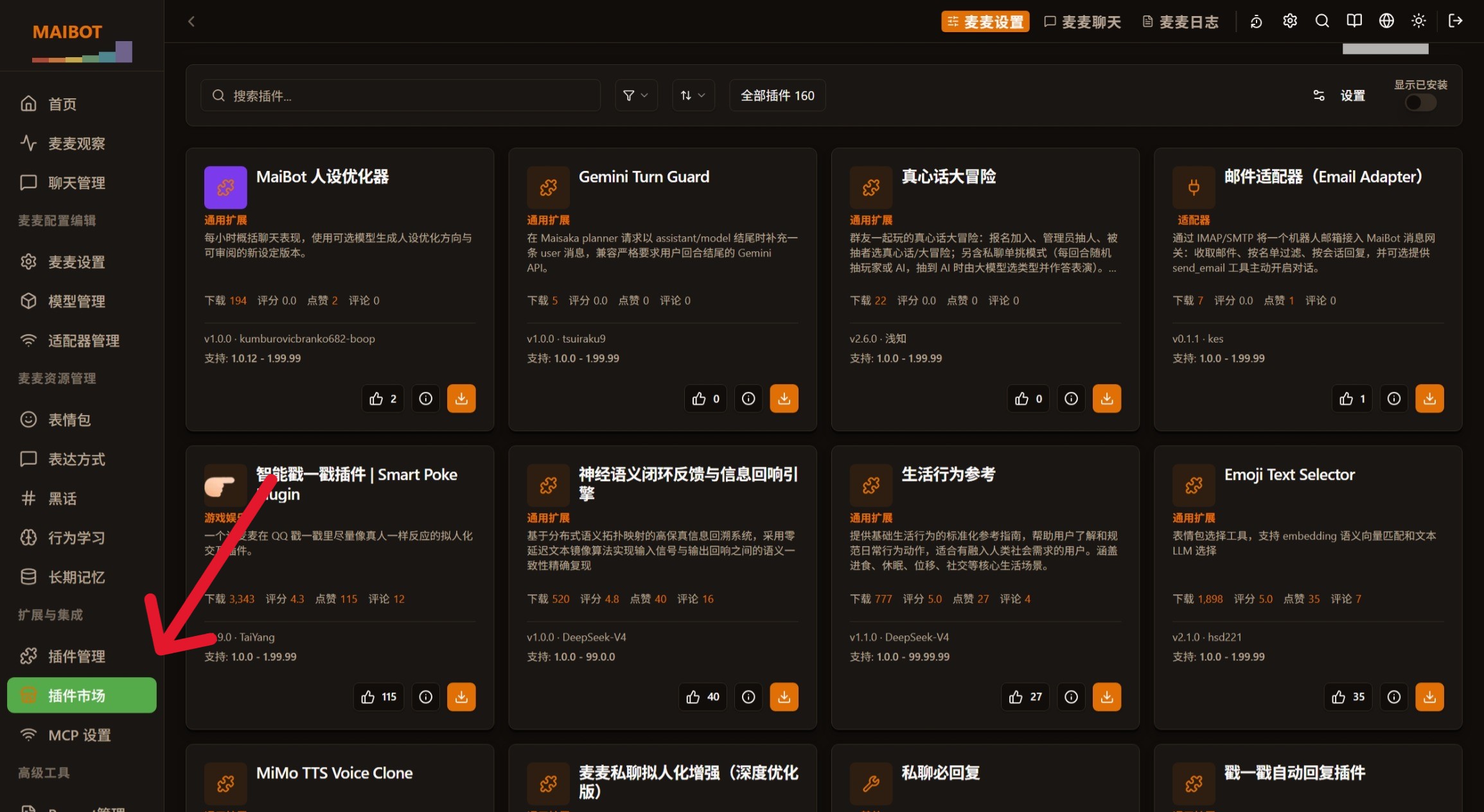
The market supports filtering by category, keyword, and author to quickly find the plugin or adapter you need:
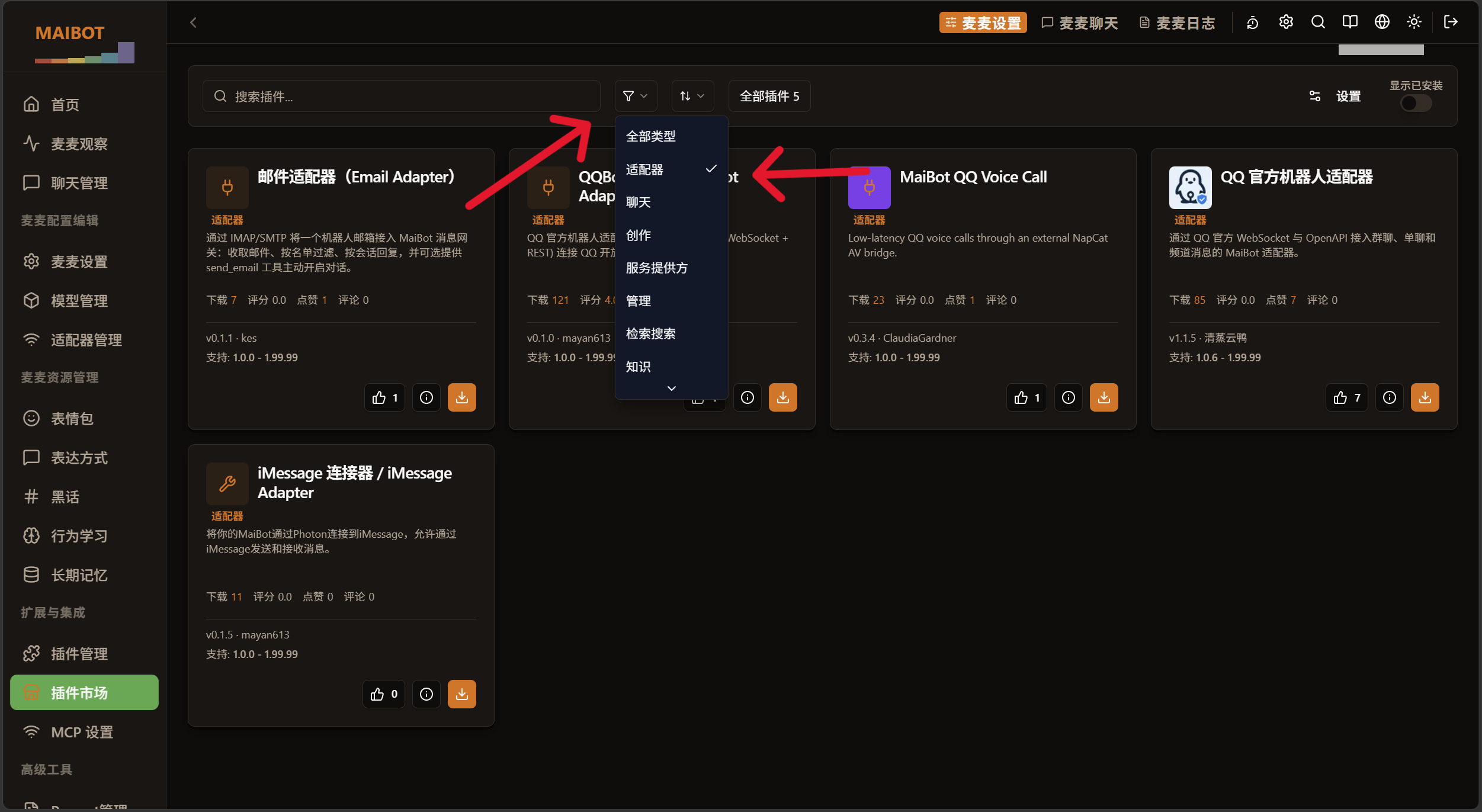
The "Only show current version" switch in the toolbar decides whether plugins incompatible with your MaiBot version are hidden. Turn it off to see at a glance which plugins need a newer MaiBot. The "Incompatible" badge on a plugin card explains why; the version-level details are in the next section.
Install from the Plugin Market
Find a plugin under "Plugin Extensions → Plugin Market / Browse" and install it:
- For plugins with published releases in the official version index, select a release version
- For plugins maintained only on a branch, select a branch
- Installed plugins are disabled by default; enable them under Manage Plugins
Can't find it in the market?
The Plugin Market is indexed from plugin repositories, and the information source can be switched to official MaiBot, CNB, or GitHub in the market settings. If it's not there, use the Git URL method below to install any public repository.
Choose Which Version to Install
The official version index maintains a release version list for every indexed plugin (built from the repository's Git Releases). You can pick exactly which one to install in the "Install version" card on the plugin detail page.
Each entry in the version dropdown carries a suffix describing its state:
- · Recommended — the newest stable version compatible with both your MaiBot and SDK; selected by default
- · Prerelease — a prerelease flagged by the author; it may contain unstable changes
- · Yanked — the author withdrew this version; installing it fails
- · Incompatibility reason — for example "Requires MaiBot ≥ 1.4.0", "Supports SDK ≤ 2.99.99 only", or "Manifest protocol version too old". These entries are disabled in the dropdown: you can see why, but cannot select them
To install a specific version (including one older than the recommendation), select it in the dropdown and click "Install selected version". Untick "Lock this version after install to block automatic updates" whenever you want to change that behavior.
Manual downgrade only
Automatic updates only move forward. If the recommended version is older than what you have installed, the auto-update answers "Already on the newest compatible version; automatic update will not downgrade or reinstall" — to downgrade or roll back, you must select that version manually on the plugin detail page.
Switch / Downgrade to Another Version
Select a different version on the detail page of an installed plugin and install it to switch versions:
- The old plugin directory is backed up wholesale to
plugins/.update_backups/ config.toml,config_back/, anddata/are carried over, so you do not re-enter configuration- Downgrading does not roll back plugin data — databases and state files written by the newer version are not restored
- During the switch the plugin is stopped and reloaded, so it is briefly unavailable; the MaiBot core does not need a restart
Do not edit code inside the plugin directory and then switch versions
If the plugin repository carries local code changes, switching versions is refused with "The plugin has local code modifications; resolve them first". Back such changes up elsewhere, or fall back to a branch install.
Plugins Not in the Version Index
The version list only covers plugins indexed officially that have published a Git Release. Installing an unindexed repository answers "Not yet in the version index; sync the plugin center first" — for these, use "Install from Git" for a branch install, and update them afterwards as an ordinary branch plugin.
Plugins installed from a release gain a .maibot-release.json receipt in their directory (recording version, tag, commit, and whether it is locked). Plugins with this receipt can no longer be updated by a plain git pull; you get "This plugin was installed from a release; update it through version selection" instead — pick a version on the detail page to change it.
Install from a Repository (git clone)
Beyond the Plugin Market, there is a "repository" path: first find a plugin on the Plugin Site or the official organization, then install it via a Git URL.
Where to Find Plugins
Besides the built-in Plugin Market in the WebUI, you can also visit the MaiBot Plugin Site to browse and search community-maintained plugins and adapters:

Install from a Git Repository URL
Use this when the plugin isn't in the market, or when you want a specific branch / fork.
Paste the repository URL into "Install from Git" in plugin extensions, or clone manually in a terminal:
# Paste the URL into "Install from Git" in the WebUI, or run in a terminal:
git clone https://github.com/author/plugin-name.git plugins/plugin-name
Example URL:
https://github.com/author/plugin-name⚠️ Besides a Git repository URL, the "更多操作 → 从 ZIP 安装插件" (More actions → Install plugin from ZIP) entry on the Plugin Extensions page also accepts a local ZIP upload; see Manage Plugins.
After Install: Disabled by Default
Regardless of method, once a plugin is written to plugins/:
- A file watcher detects the new plugin and generates
config.tomlfrom the plugin'sconfig_model; - Plugins whose
enableddefaults tofalsemust be enabled manually to run.
Go to Manage Plugins to enable and configure it.
Security reminder
Only install plugins from trusted sources. Before installing, check the repository's README, update time, and Issues, and review the permissions the plugin requests. Third-party plugins are maintained by their respective authors; the MaiBot team does not guarantee their compatibility or safety.
Verification & Troubleshooting
Verify: after installation the plugin appears in the WebUI plugin extensions page and plugins/<plugin-name>/config.toml has been generated — installation succeeded. Then go to Manage Plugins to enable it manually.
The plugin is missing from the list?
- Check the directory structure:
plugins/<plugin-name>/must contain_manifest.jsonand the plugin entry file; an extra nesting level will not be detected
config.toml was not generated?
- Plugins that do not declare
config_modelhave no config file — that is expected - If it should exist, check the plugin loading errors in the log
Enabled but not running?
- Check whether
min_versionin_manifest.jsonis compatible with your MaiBot version - Confirm the dependencies declared by the plugin are installed
- When you are sure a version number is blocking it, temporarily enable
[debug] force_plugin_compatibilityand restart — see Manifest System · Force Plugin Compatibility
git clone fails?
- Private repositories require an SSH key or access Token
- On a restricted network, download the plugin files manually and place them under
plugins/<plugin-name>/with the directory structure preserved
Installing a specific version fails?
- "Plugin dependencies unsatisfied" — the other plugins or Python packages required by that version are missing
- "A plugin dependency reminder" — an installed plugin needs this plugin to stay in a specific version range; this does not block the install — the install / switch completes as usual, just keep an eye on the plugins named in the reminder
- "The plugin has local code modifications; resolve them first" — you edited code inside the plugin directory; back it up and restore the directory
- "The tag's current commit does not match the version index" / "The downloaded manifest does not match the version index" — the index and repository are out of sync; wait for the index to sync and retry
- "Version sync failed: …" — the official version index itself could not be fetched; switch mirror source or retry later
The plugin market won't open, or install spins forever?
- The plugin market supports HTTPS domains resolving to the Fake-IP range
198.18.0.0/15. If proxy access still fails, check proxy rules, switch mirror source, or temporarily disable Fake-IP mode - When every mirror source fails, the error message ends with the specific reason for each one — follow those hints