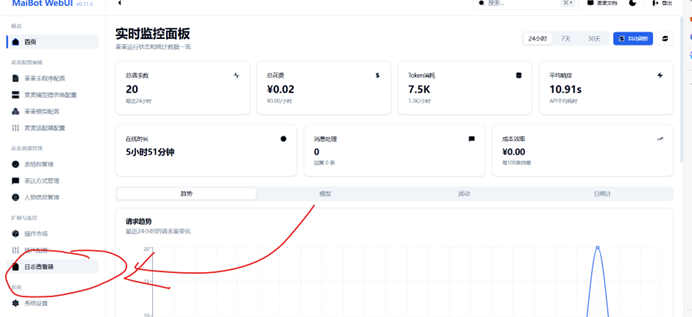
MaiBot Program Configuration Guide
---Powered by ARC
This document details the deployment process for Windows one-click packages
Version limitation: 0.11.6 and above, universal across versions (December 5th) (one-click packages can be obtained through QQ group)
Since this document is quite long, please read it carefully! If you know your purpose, click the corresponding title in the right sidebar to quickly jump
📝 Deployment Pre-statement:
- The document contains text in three colors:
- Black: Parts to read and operate according to the process.
- Blue: If you can understand the corresponding content, you can refer to it for execution. This part explains some principles and causes.
- Red: Important warnings or high-risk configuration items. Please make sure you know what you're doing before modifying.
If following this document step by step for deployment, theoretically shouldn't have issues.
If problems occur, please first check with the document to see if your process has issues; if you're very sure the process is correct, and have already checked related operations with the document, you can ask in the group:
But please be sure to include screenshots with complete content and detailed problem descriptions, including but not limited to steps reached when problem occurred, window situation and its complete internal content, otherwise cannot assist in troubleshooting!
Please ensure reading the above notice before deployment!
Note! Regarding content marked cautiously modify in red text in this document, try not to modify as much as possible to avoid unexpected errors
Continuing from the one-click package guide:
(docker/linux basic logic same as this, except some file locations differ)
We mentioned above in the one-click package deployment guide "MaiBot main program" (hereinafter referred to as core), "Napcat-adapter" (hereinafter referred to as adapter) and "Napcat", these three modules together constitute the complete MaiBot, none can be missing. Among them: core adjustable configuration items include "bot_config.toml", "model_config.toml", adapter adjustable configuration items include "config.toml
Above configuration files can all be managed through main program-WebUI or manually modified with text editor, but Napcatcan only be managed through Napcat-WebUI!
First, we need to understand configuration items that can and need adjustment
Here, we first explain how to modify configuration files through WebUI
⚠️ Please note! MaiBot started through one-click script should be the standard release version from current git repository, image styles may differ from document, but modification positions and content theoretically shouldn't have major changes. If changes occur, please @ARC to update document support.
⚙️ MaiMai Main Program Configuration
Here first explains basic modifications through visual WebUI configuration. When modifying, please combine this document with actual WebUI page display (Please note! Only content marked as modifiable can be modified!) All modifications mentioned below can be understood in detail in official documentation. Model Configuration Guide
🧩 Basic Information
Modifiable: QQ account, nickname, other platform accounts, aliases
QQ account: MaiMai bot's QQ account Nickname: MaiMai bot's name
If you enable mention replies, modifying this field can successfully make bot respond when calling by alias
Other platform accounts: No need to modify if no multi-platform requirements
If yes, fill accounts according to "wx:123123123" or "qq:123123123" format
Aliases: MaiMai bot's pet names, or nicknames
If you enable mention replies, modifying this field can successfully make bot respond when calling by alias
🧬 Personality
Modifiable: Personality traits, expression style, interests, speaking rules and behavior style, private chat rules, image recognition rules, state list, state replacement probability
Personality traits: MaiMai bot's brief persona, please use concise keywords to describe MaiMai's persona as much as possible, can cover personality traits and identity characteristics.
Expression style: MaiMai bot's speaking style, this affects its tone and word choice when generating replies.
Interests: Describe topics/fields MaiMai bot is interested in. When corresponding topics are discussed in group, MaiMai will be more willing to participate in replies.
Speaking rules and behavior style: Used to control MaiMai's speaking habits in group chats and initiative in calling tools (can be used with plugins).
⚠️ Recommended to keep default first three rules unchanged.
If need customization, please add from item 4 in order, avoid disrupting default logic.
Private chat rules: Adjust MaiMai bot's speaking style in private chats and initiative in calling tools (can be used with plugins)
⚠️ Recommended to keep default first three rules unchanged.
If need customization, please add from item 4 in order, avoid disrupting default logic.
Image recognition rules: If not necessary, don't modify this paragraph, unless you know what you're doing!
State list: MaiMai's personality changes during chatting, combined with state replacement probability, can be used for reply style adjustment. You can add states and customize according to example states.
State replacement probability: Probability of random personality replacement according to state list. Higher probability, easier to switch.
💬 Chat
Modifiable: Chat frequency, context length, planner smoothing, add planner reasoning to replyer, dynamic speaking frequency
Chat frequency: Value between 0~1, lower frequency means more silent; conversely more active.
Context length: Number of previous messages MaiMai sees when replying (if not familiar with related mechanism, please don't modify)
Larger, more information, more comprehensive, higher token; smaller, less information, more focused, lower token
Planner smoothing: If not necessary, don't modify this paragraph, unless you know what you're doing!
Larger value, longer interval between planner calls, lower load, but overall response speed slightly slower; 0 means turn off this smoothing mechanism, let chat loop proceed as fast as possible
Add planner reasoning to replyer: If not necessary, don't modify this paragraph, unless you know what you're doing!
If enabled, decision model's generated content will be added to reply model's context, can enhance MaiMai's understanding ability of text segments, disadvantage is increased token consumption (and extreme cases of irrelevant answers)
Dynamic speaking frequency: This item used for targeted adjustment of specific group chat/specific time period speaking frequency; If this setting enabled, will prioritize executing dynamic speaking frequency; When matching, prioritizes detailed rules, then global rules.
🗣️ Expression
Modifiable items: See main program-WebUI for details Expression methods: MaiMai can regularly learn group members' chatting styles, through analysis, inference, imitation of group friends' sentence patterns, making MaiMai more human-like. Expression sharing group configuration: By setting expression sharing groups, different groups' expression methods can interconnect and learn from each other (note: only expression methods affected, memory not affected).
🛠️ Functions
Modifiable items: Tool settings, memory settings, emoji pack settings, replace emoji packs when maximum number reached, steal emoji packs, enable emoji pack filtering
Tool system: Allows MaiMai to call tools including lpmm knowledge base and all "external" plugins, if not familiar please don't turn off!
Memory settings: Memory thinking depth: Allows MaiMai to think and deliberate before speaking. Higher thinking depth, more meaningful replies, more token consumption, longer time.
Emoji pack settings:
Activation frequency: Probability of MaiMai sending emoji packs (only calculates probability of additionally sending emoji packs when MaiMai preparing to reply)
Maximum registration number: Number of truly usable and sendable emoji packs MaiMai owns.
Check interval: Controls frequency of MaiMai adding/checking/deleting current emoji packs. Lower means more frequent.
Enable emoji pack filtering: Check this item, MaiMai only adds/registers emoji packs meeting requirements.
🧹 Processing
Modifiable items: Keyword reaction configuration, reply post-processing configuration.Not elaborated here, check and adjust configuration as needed.
😶 Emotions
Modifiable items: Emotion settings Emotion system: Adjust MaiMai's current mood and emotions.
Note! After enabling this item, your MaiMai will no longer be strongly constrained by persona and other prompts. If need to maintain persona stability, please don't enable this item! Unless you really treat MaiMai as an independent individual!
🎙️ Voice
Modifiable items: Voice recognition Voice recognition: Adjust whether MaiMai can extract text from sent voice messages (default model requires SiliconFlow key)
📚 Knowledge Base
Modifiable items: LPMM knowledge base
Please note! This part is relatively complex! Please first read all official documentation about LPMM knowledge base, then try opening/debugging/adding yourself!
📄 MaiMai Knowledge Base (New LPMM) Usage Instructions | MaiBot Documentation Center
🔧 LPMM Knowledge Base Import File Requirements | MaiBot Documentation Center
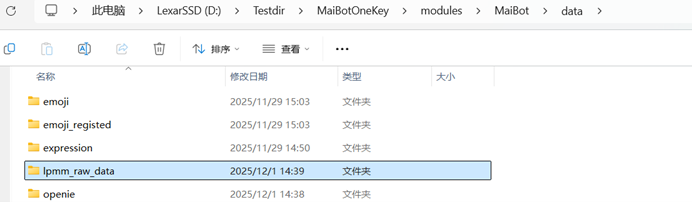
About learning function: You can perform LPMM learning through "MaiMai One-click Learning" option in console CMD. After running script, before confirming import, you can find newly added lpmm_raw_data folder under modules/MaiBot/data. Put your txt files in folder, then press y according to process.If need to delete knowledge base, directly delete rag and embedding folders.
Again note! If not necessary, definitely don't change default embedding model, unless you know what you're doing!!!
🗂️ Other
Modifiable items: Modify as needed. All modification items here have no obvious impact on program. If you know what you're modifying, can modify.
🔌 MaiMai Adapter Settings
If using WebUI version 0.11.6 and above, please refer to this image:
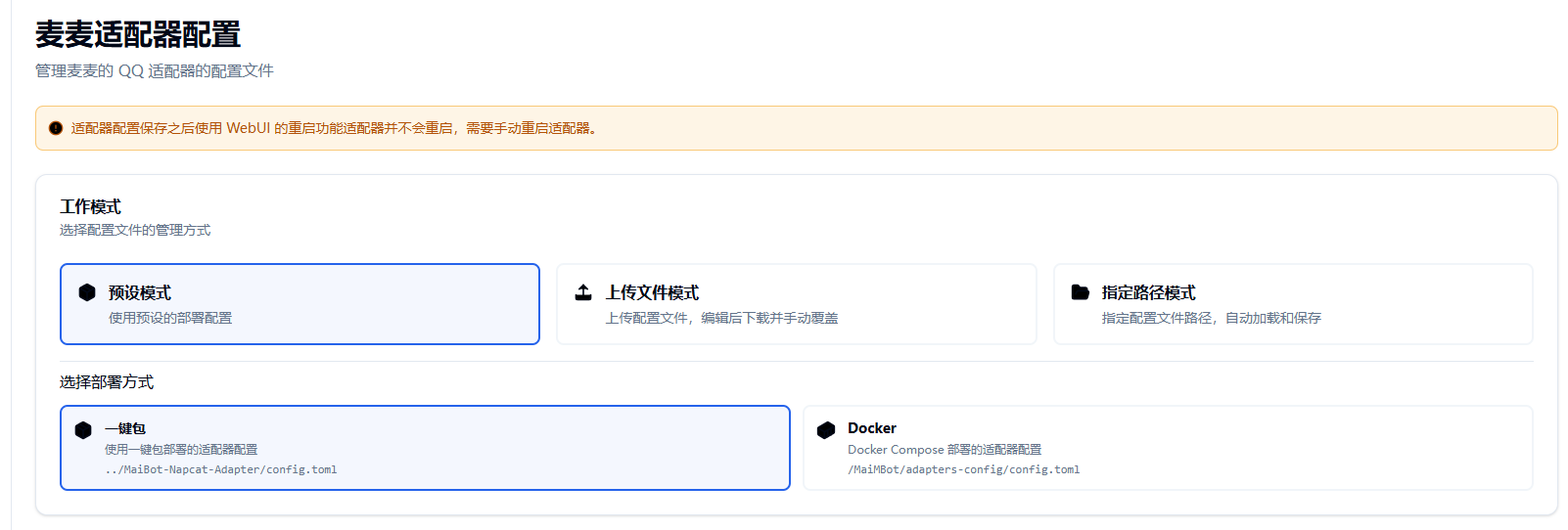 WebUI editing adapter has three methods: preset mode, upload file mode, specify path mode.
About preset mode: Currently supports one-click package and Docker deployment, modify accordingly.
About specify path mode: By typing absolute path, can directly load config.toml at corresponding location.
About upload file mode: This function only applicable when you know file location but won't manually modify.
If using one-click package and want to directly edit corresponding file (not using WebUI), you can find document named config.toml at screenshot location.
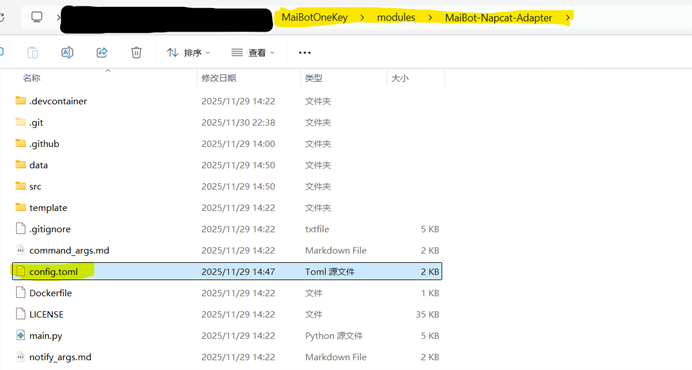
Open with any available text editor, you'll see following format:
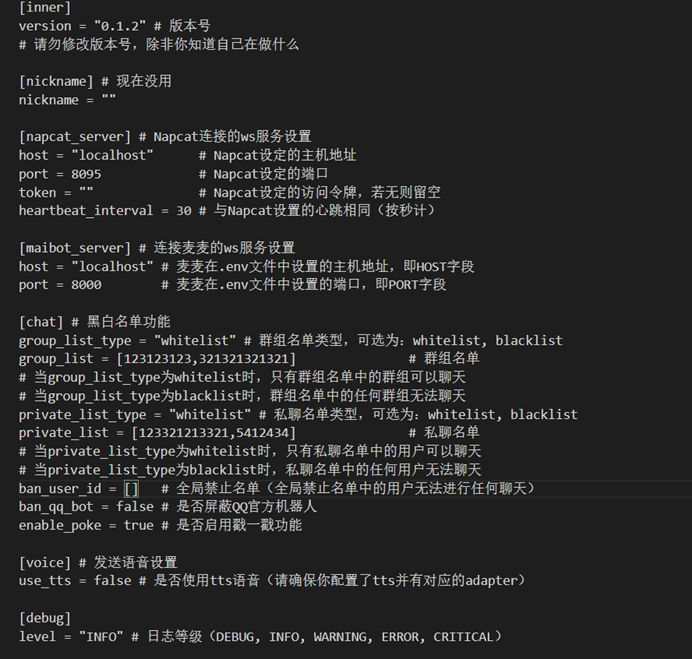
Modifiable items include: host address, port, access token, heartbeat interval, WebSocket access host address/port, chat whitelist/blacklist function, send voice settings, debugging.
Host address/port: This item used to adjust adapter's own Websocket client, Windows/linux environment keep localhost, docker environment should be 0.0.0.0, if no specific requirements, don't change port!
Access token: This item used to control secure link with Napcat. If fill this item, need to ensure access token consistency in Napcat-network configuration!
Heartbeat interval: If no specific requirements, don't modify this item!
About group chat whitelist/blacklist, whitelist means only group chats on list get replies, blacklist opposite.
About private chat whitelist/blacklist, whitelist means only private chats on list get replies, blacklist opposite.
About group chat/private chat/blacklist list array configuration, if directly editing config.toml file, must write according to [number,number,number] format.
Don't use Chinese commas or Chinese quotes! Like "”;","
Send voice settings: This option only enabled after configuring text-to-speech function! You can implement through plugins/adapter etc.
Debugging: This part adjust according to personal needs!
🧠 AI Model Provider Configuration
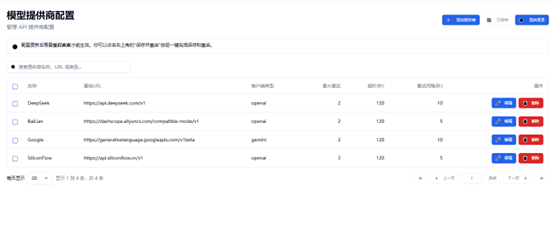
Model providers: Source providing brain for MaiMai, indispensable.
This page includes four common model providers: DeepSeek, Alibaba Cloud Bailian, Google and SiliconFlow. Among them, SiliconFlow most friendly for newcomers' first configuration. Link: SiliconFlow Official Website
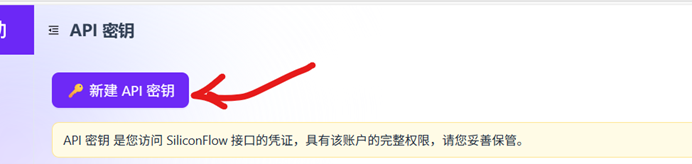
After clicking link and completing registration, will jump to page in image, click bottom left "API Keys"
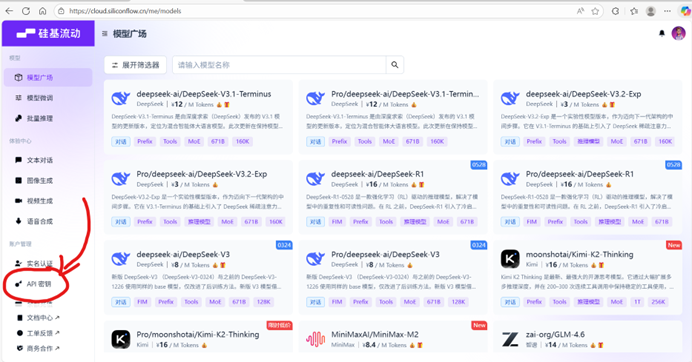
Click create new key
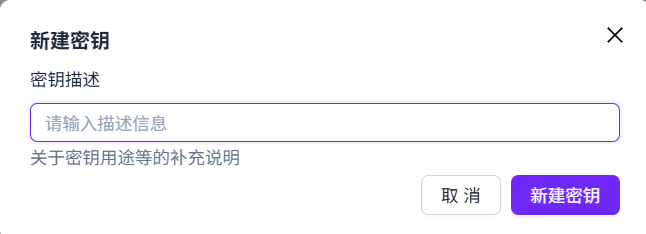
Enter key information
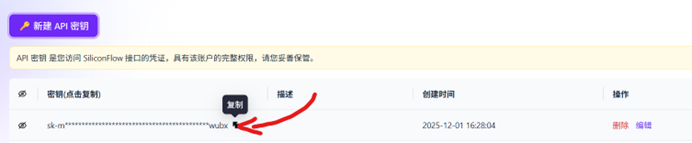
Afterwards you'll jump to page below, hover mouse over string on left side of page, click copy (we call this API key)
Return to main program page, click edit
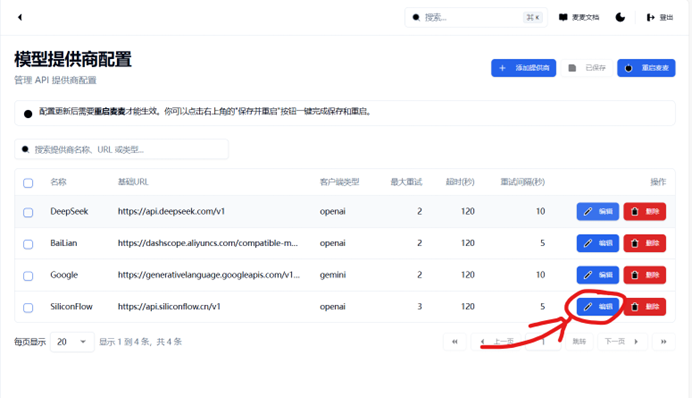
Paste obtained API key into main program-WebUI's API KEY field, click save
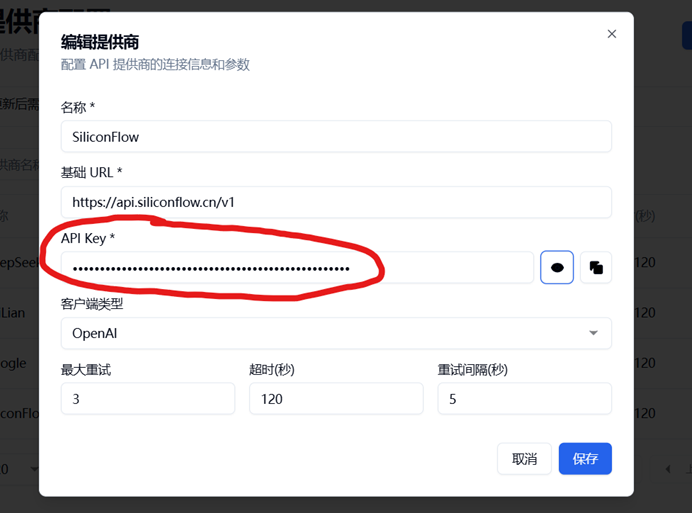
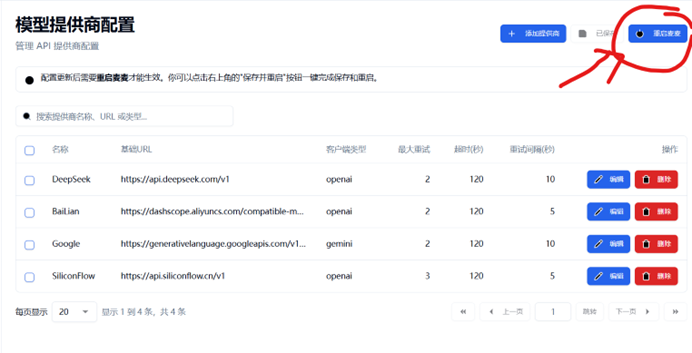
After completing save, click restart MaiMai. Theoretically your MaiMai should work normally!
🌐 Some Common Large Model Websites
(Here only includes platforms with formal business certificates and enterprise backing)
Alibaba Cloud Bailian Console (CN site)
Moonshot AI Open Platform - Kimi Large Model API Service
🏗️ How to Add Model Providers?
This configuration process varies according to model provider. Here only describes common process:
First, need to log in to model provider platform, obtain API endpoint address by viewing model provider's documentation center, e.g.:
https://template.com/v1 (here only for display, no actual function)And visit personal center, generate and obtain API key. Finally fill obtained endpoint address and API key into above base URL and APIkey.
🧩 MaiMai Model Management and Allocation
Before we start introduction, please read following working principles in detail (plain language):
Large model services provided by large model providers. MaiMai obtains large model services by calling large model providers' API, sending API KEY and requested large model model.
MaiMai internally has many work modules, different modules may use different large model models, source providers may also differ.
Before requesting services from large model providers, MaiMai needs to determine its use of: Model model, source, and internal work module to apply.
Our next tutorial mainly explains model model, source, internal work module in detail:
First, let's explain basic operation methods with WebUI, then explain in detail how to configure and add models. Model configuration details page.
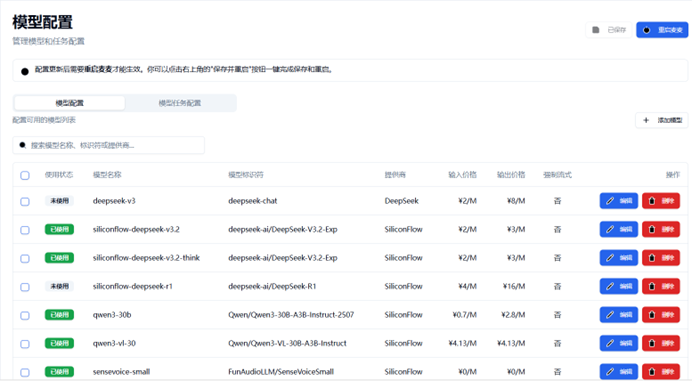
This page includes all currently unused/used models written in configuration file. Among them: Left checkbox used for batch selection function. Right edit button used to adjust model internal configuration, delete button can delete corresponding model.
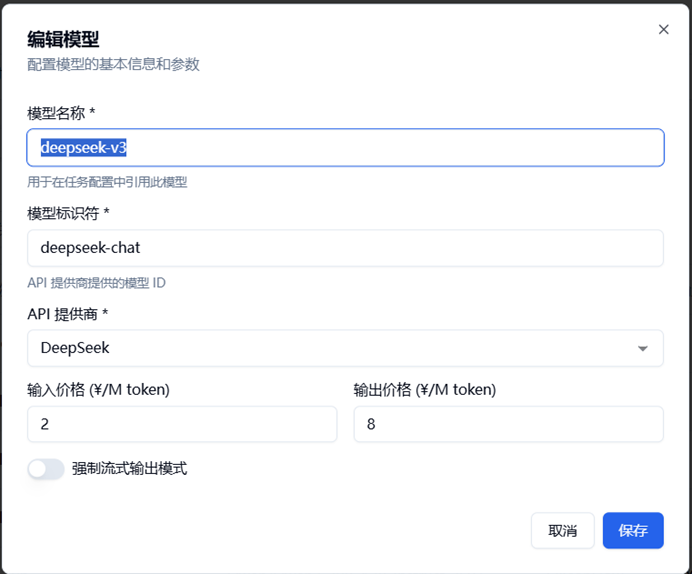
Edit model page includes modifiable fields: Model name, model identifier, API provider, input/output price.
Model name: Name used to refer to this model within MaiMai main program, model task configuration part needs to use this field.
Model identifier: Model ID corresponding to this model at model provider.
API provider: Source provider of this model.
Input/output price: Unit price used by main program to calculate cost consumption, for statistical data.
Force streaming output mode: If don't know function of this field, don't modify!
🧱 Model Function Allocation Details Page
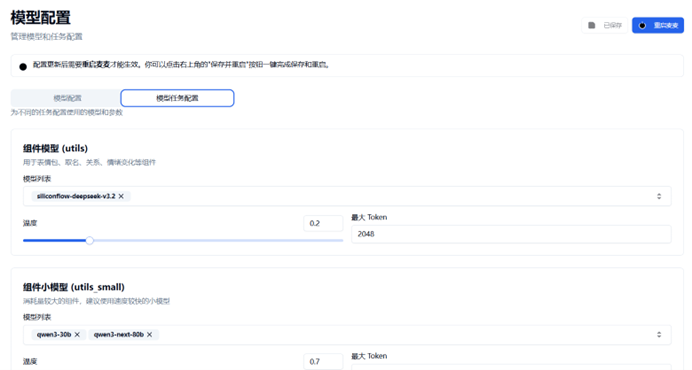
This page used to allocate models used by MaiMai's various modules.
Includes: Component models, component small models, tool call models, primary reply models, decision models, image recognition models, voice recognition models, embedding models, entity extraction models, RDF construction models, Q&A models.
Related descriptions detailed in WebUI, not elaborated here.
For detailed understanding please refer to official documentation.
🧪 Practical Exercise
Add Model for Component
We take SiliconFlow importing DeepSeekV3 as example:
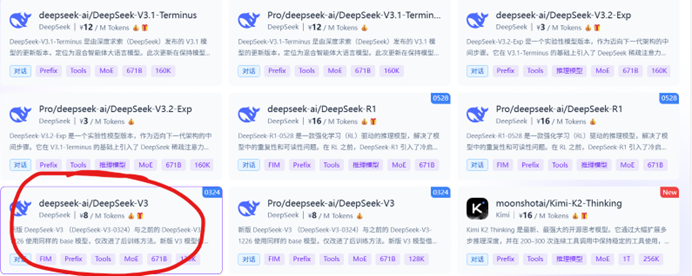
Here, you can see numerous models. Among them, bottom left is model we want to add, click bottom left.
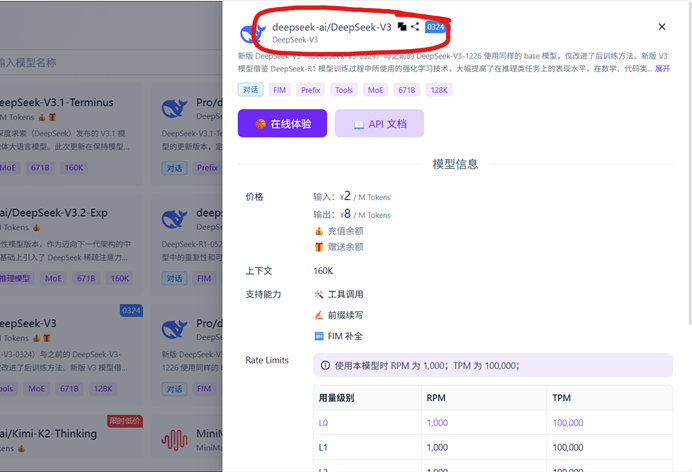
Pops up model detailed description page. Part circled red in image is model identifier, click copy button to obtain identifier.
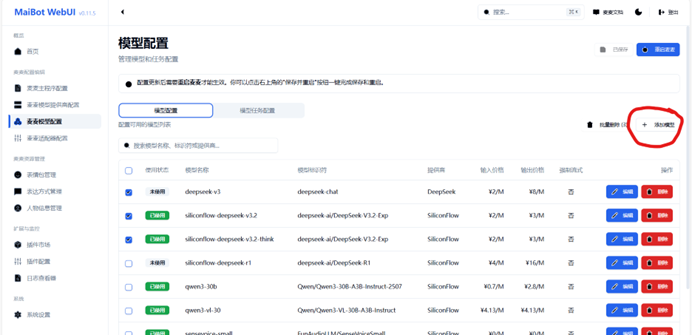
Return to main program-WebUI, click "Add model" in red circle, will pop up model detailed configuration page.
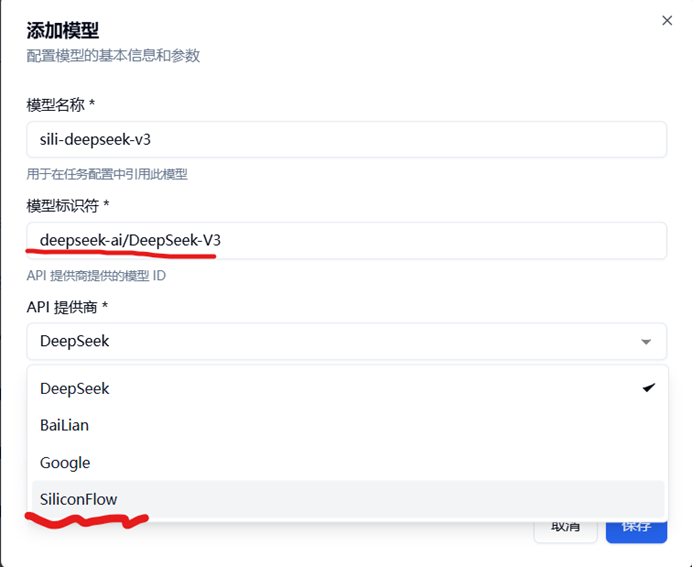
Model name: Fill according to personal thoughts, recommended reasonable filling for later search/lookup (sili-deepseek-v3 in image means siliconflow-deepseek-v3).
Model identifier: That is model ID obtained from SiliconFlow, copy exactly as is.
API provider: That is provider from which we obtained model ID, select accordingly.
Input/output amount: Fill according to amount indicated by model provider.
After completing filling click save. If operation correct, you should see your newly created model at bottom of page.
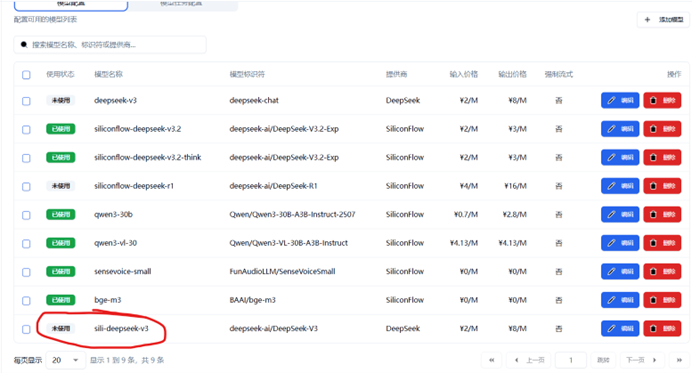
Next, please remember your model name, click model task configuration, we add new model at primary reply model:
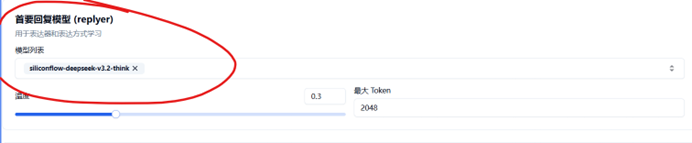
Click model list (blank area), you'll find sub-list pops up.
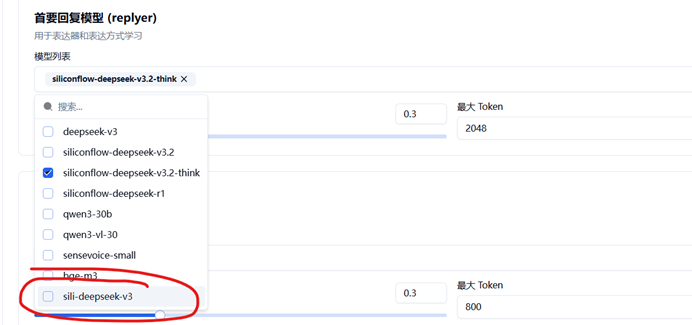
Check our newly added model. You may notice some models not in popped up sub-list, delete correspondingly.

If configuration completed, should be similar to configuration in image. Click top right restart MaiMai.
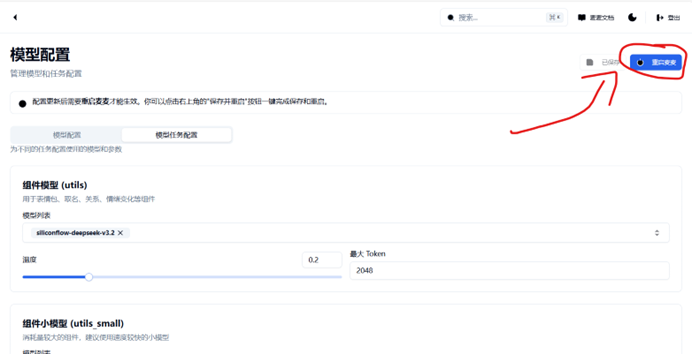
At this point, congratulations on completing model addition 🎉🎉🎉
🎭 MaiMai Resource Management (Emoji Packs/Expression Methods/Character Information)
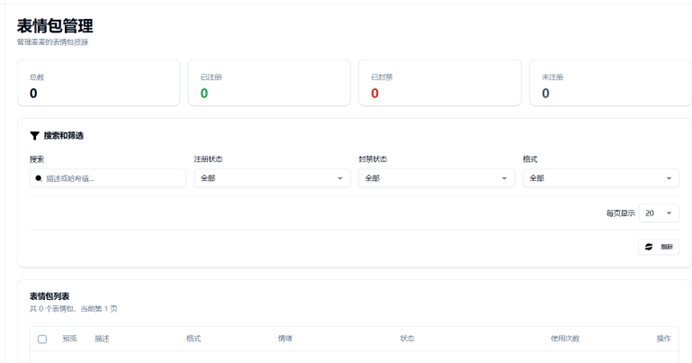
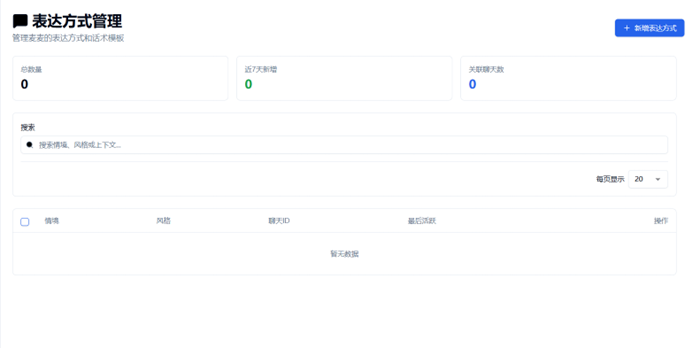
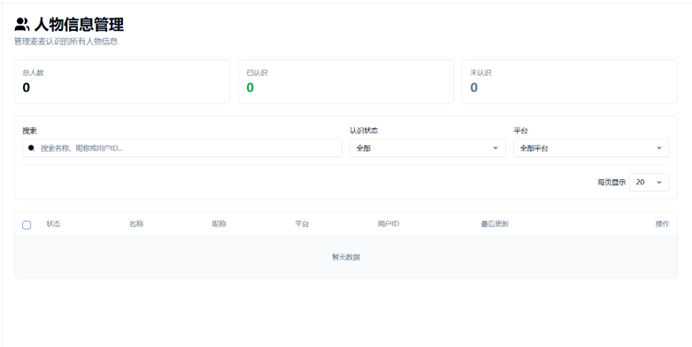
This part roughly describes MaiMai robot's emoji pack/expression method/character information manager. Theoretically according to WebUI configuration introduction, this document doesn't need explanation, so only attach screenshots.
🔍 Extensions and Monitoring
WebUI version 0.11.6 already strengthened technical support for plugin part. Here only reminds currently possible issues:
WebUI downloaded all plugins for versions 0.11.4~0.11.5 need file renaming, as shown:
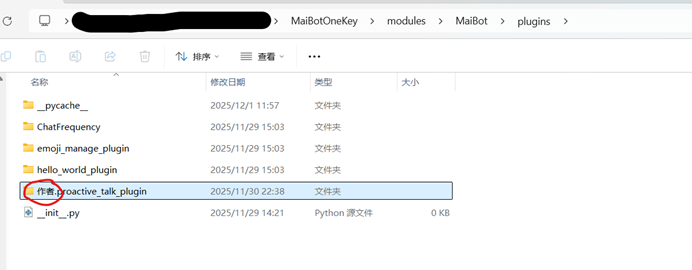
Part circled red in specified path " author." must be deleted and main program restarted to recognize plugin. Detailed plugin usage documentation please see plugin market Github author's README documentation and official documentation. Plugin System Usage Documentation
😫 I don't understand anything! I just want to run MaiMai!
Do in following order enough (specific details refer to previous chapters):
- Confirm your main program/adapter and napcat successfully started (refer to previous "One-click Package Deployment Guide")
- Configure SiliconFlow model provider
- Confirm if you added whitelist for group chat/private chat
- Save your configuration modifications and restart main program and adapter
- @MaiMai in QQ group, if replies, success!
❓ Still have questions?!
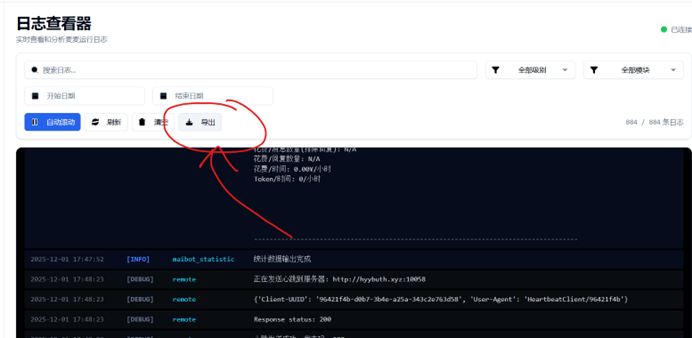
Please according to instructions in image, obtain log document (named logs-YYYY-MM-DD-ABCDEF.txt), and Napcat, adapter console logs (if necessary). And send to group chat, we'll try our best to solve your problem!
If you really don't know what logs are, screenshot all black windows, merge into one chat record and forward, and follow others' instructions!